You can now manage voluntary deductions and employee loans directly from the employee's profile.
Before you start
- Deduction headings must be set up in Cintra iQ. Cintra People lets you apply an existing heading to an employee: if the heading you need isn't available, ask your payroll administrator to add it first.
- Changes you make here flow through to the payroll calculation engine automatically.
- Depending on your permissions, you may not be able edit any information in this tab.
Where to find it
- In Cintra People, open the correct payroll and select the employee you want to update.
- Select Edit Employee.
- Select the Deductions & Loans tab.

Voluntary deductions
The Voluntary Deductions sub-tab lists all deductions currently applied to the employee. Each row shows the deduction heading, date range, reference, and amount.
Some deductions are managed automatically by the system and appear as read-only. These cannot be edited or deleted from Cintra People.
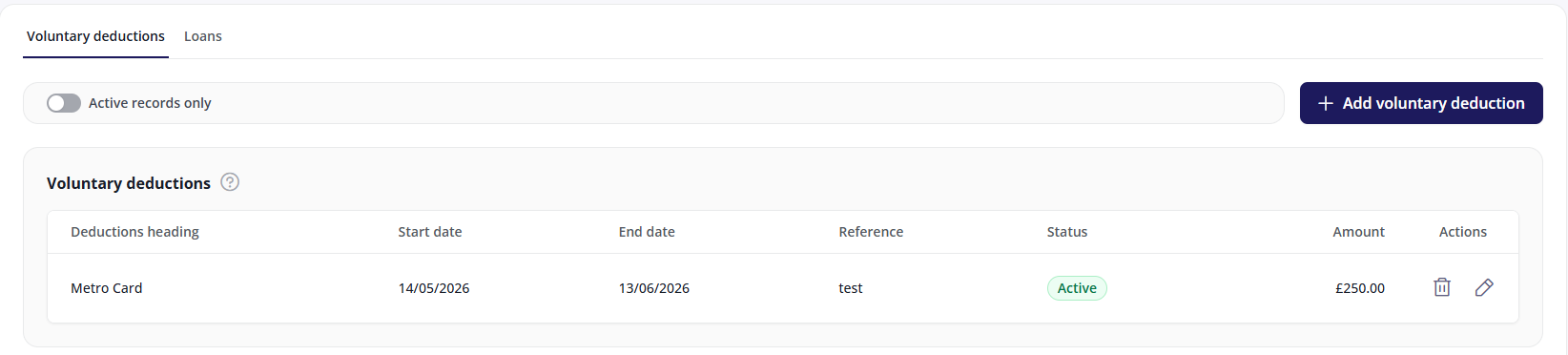
Adding a voluntary deduction
- Select + New Deduction.
- Step 1: Select a Deduction type (e.g. private health or equipment loan) heading from the dropdown, and add an optional Reference.
- Step 2: Set a Start date and optional End date (leave blank for an open-ended deduction).
- Step 3: Set the amount per payroll period. Toggle on Use standard deduction amount to use the default value (if one is available), or off to enter a custom amount. Add an optional reference if needed.
- A warning will appear if the new deduction overlaps with another deduction with the same type.
Editing a voluntary deduction
Select the edit icon on the row you want to change. You can update the dates, reference number and amount. The deduction heading and From date (if the deduction has already been processed) cannot be changed.
Deleting a voluntary deduction
Select the delete icon on the row you want to remove and confirm when prompted.
- If the deduction has not yet been processed, it is deleted immediately.
- If it has already been processed, deletion is blocked. End-date the deduction instead to preserve payroll history.
Loans
The Loans sub-tab lists all loans held by the employee. Each loan displays the deduction heading (e.g. loan repayment or season ticket), loan reference, and a live outstanding balance, with its repayment schedule shown underneath.
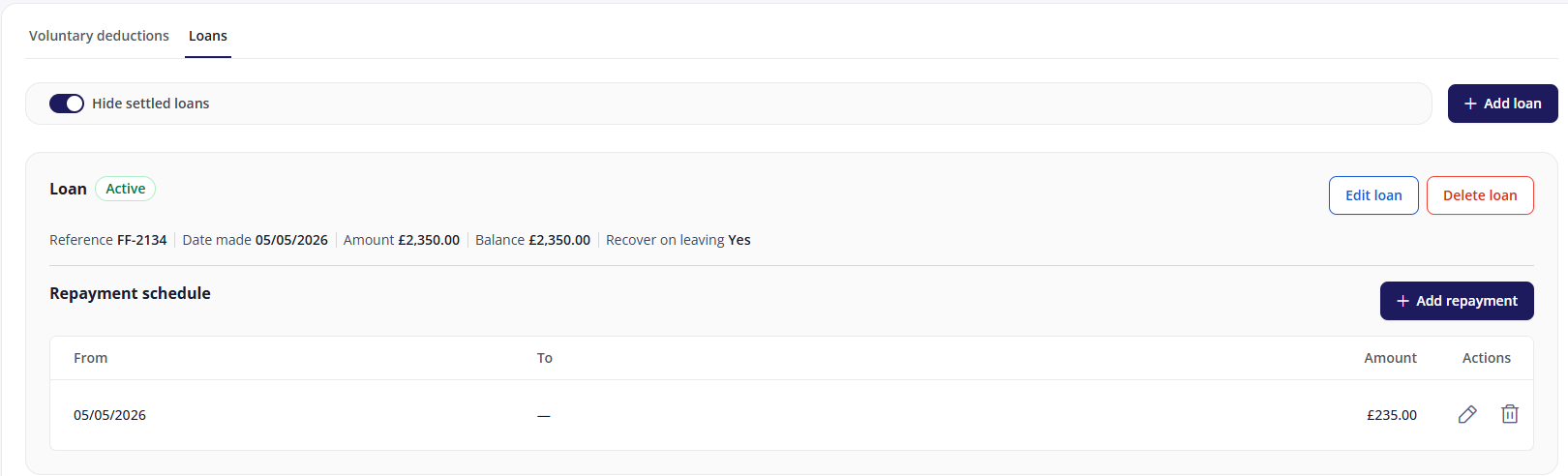
Adding a loan
- Select Add loan.
- Enter the loan reference, deduction heading, date of loan, and total amount.
- If the loan pre-dates the employee's system start date, enter a take-on balance to record the outstanding amount brought across.
- Set whether the outstanding balance should be recovered if the employee leaves.
- Select Create.
Adding a repayment schedule
- Inside the loan, select Add repayment.
- Enter a Fromdate (required) and a Todate (leave blank for an open-ended schedule).
- Enter the repayment amount per pay period.
- Select Create.
You can add multiple repayment schedules to a single loan over time, e.g. if the deduction amount changes.
Editing a loan
Select Edit loan on the loan you want to change. You can update the loan reference, date of loan, total amount, take-on balance, and the Reclaim on leaving setting. The deduction heading cannot be changed once the loan is created.
Editing a repayment schedule
Select the edit icon on the schedule row. You can update the from date, to date, and repayment amount.
Deleting a loan
Select Delete loan and confirm when prompted. Deletion is only available if no repayments have been processed against the loan. If repayments have been taken, the loan must remain on record to preserve payroll history.
Deleting a repayment schedule
Select the delete icon on the schedule row and confirm. Unlike loan deletion, this is not blocked by prior processing. Any corrections flow through to the next pay run.
FAQs
- The heading I need isn't in the list. What do I do?
- I selected the wrong heading. Can I edit it?
- Will backdating generate corrections?
- Why is the loan total amount locked?
- What's the difference between the total amount and the outstanding balance?
- Can I have more than one repayment schedule on a loan?
The heading I need isn't in the list. What do I do?
The heading needs to exist before it can be applied in Cintra People. Ask your payroll administrator to add it
I selected the wrong heading. Can I edit it?
No. The heading is fixed once a deduction or loan is created. Delete the record (or end-date it if it has been processed) and add a new one with the correct heading.
Will backdating generate corrections?
Yes, if the date you enter falls in a payroll period that has already been processed (and is within the current tax year), a warning is shown and corrections flow through to the next pay run. Dates in a previous tax year are blocked.
Why is the loan total amount locked?
Repayments have already been processed against the loan. Contact your payroll administrator if the amount needs to change.
What's the difference between the total amount and the outstanding balance?
The total amount is what was originally lent. The outstanding balance is what remains — calculated automatically based on repayments made and any take-on adjustment.
Can I have more than one repayment schedule on a loan?
Yes. Add a new schedule entry whenever the repayment amount changes. End-date the current schedule and add a new one from the next pay period.
Was this article helpful?
That’s Great!
Thank you for your feedback
Sorry! We couldn't be helpful
Thank you for your feedback
Feedback sent
We appreciate your effort and will try to fix the article