You can access employee information in the lower half of any payroll.
Navigating to the payroll
Once you've logged in to Cintra People:
- In the Payroll tab, select Payrolls in the side menu.
- If you have access to multiple payrolls, select the payroll to view.
- The Payroll screen displays all the key information about the payroll and its current period. For more information, see the Payroll Summary Dashboard.
Viewing the list of employees
At the bottom of the Payroll screen, you can see a list of employees assigned to the payroll. By default, only employees assigned to the current payroll are shown, but you can view all employees by clicking All time.
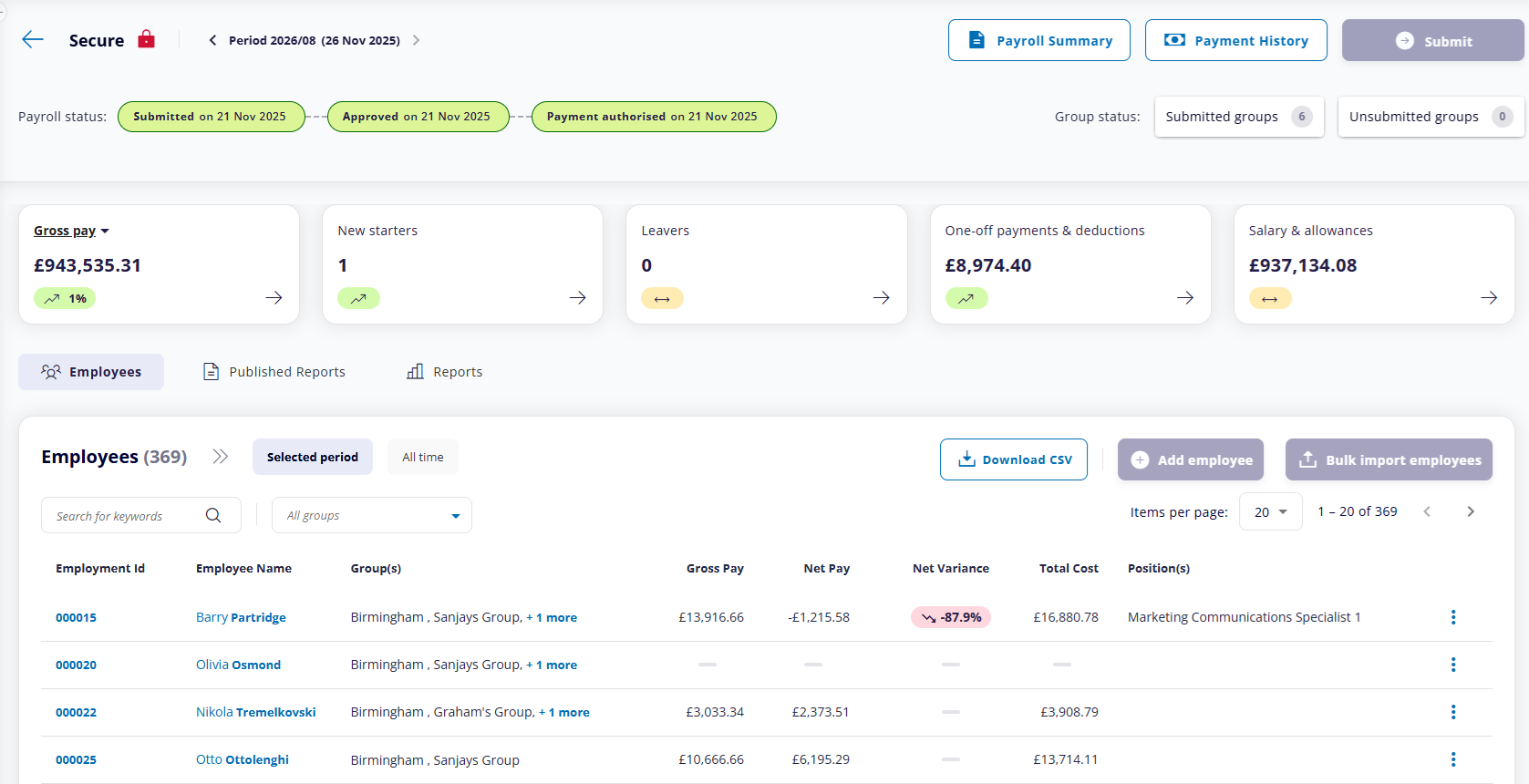
(Click to expand payroll screen)
Employee list information
As well as their name, employment ID, and any group(s) they've been assigned to, for each employee in the employee list, you can view the following information:
- Gross Pay / Net Pay: The employee's pay before and after tax
- Net Variance: If the employee's net pay has increased or decreased since the previous payroll period, the % variance will be displayed. Hover over the figure to view the previous pay.
- Total cost: The total cost of employing the employee for the payroll period, generally their gross pay plus employers NI contributions.
- Positions: Each employee should have one or more positions.
- Starter/leaver: If the employee has left the company, or if they are a new starter in the current period, an icon will appear beside their name.


- To edit an employee or view their pay details, click the ellipsis icon: ⋮
Search / filter options
You can restrict which employees are shown in the list of employees:
- Payroll period: You can either view all employees by selecting All time, or select Selected Period for a specific payroll. You can change the period at the top of the screen.

- Keyword search: Start typing into the Search for keywords field. Only employees with a matching name / employment ID will be displayed.
- Group: Employees can be assigned to one or more groups to streamline payroll and reporting. Selecting one or more groups from the Groups drop-down will filter the list by its members.
- For more information, see Cintra Groups.
Starters and leavers
The tiles in the centre of the payroll display how many employees in the current payroll period are new starters or leavers.
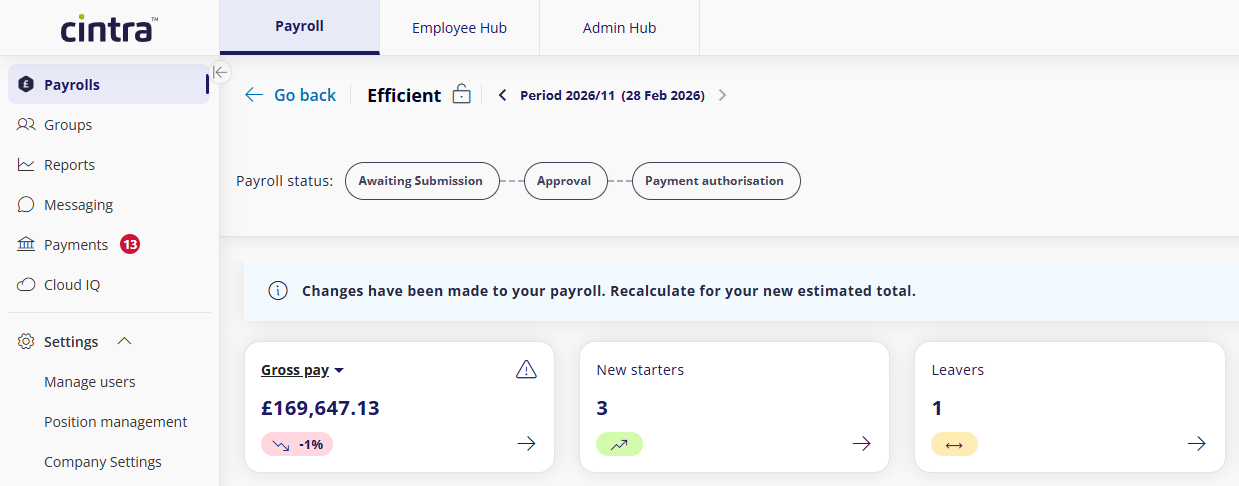
Click to expand the payroll screen tiles
You can view a list of the new starters / leavers by clicking the arrow within the tile.
Downloading the current view
You can save the employee list as a .csv file by clicking Download CSV.
Viewing employee pay details
You can view more information about any employee's pay for the current period by clicking the ellipsis icon , then View pay details.
Pay details is split into the following sections:
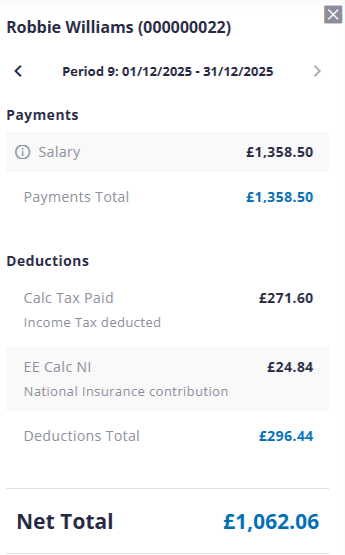 (Click to expand pay details) (Click to expand pay details) |
|
 icon will display more information about the employee's salary.
Was this article helpful?
That’s Great!
Thank you for your feedback
Sorry! We couldn't be helpful
Thank you for your feedback
Feedback sent
We appreciate your effort and will try to fix the article