Cintra Cloud allows users to easily add one-off payments or deductions for employees and associate them with a position. There are two ways to add one-off payments/deductions in Cintra Cloud:
Singular payments/deductions using the wizard
Bulk importing multiple payments/deductions in a single transaction using the bulk import tool.
TABLE OF CONTENTS
- Add a one-off payment or deduction to an employee
- Bulk importing multiple payment/deduction in a single transaction
- Editing an existing payment
- Recalculate the payroll
- Filter the payments by heading
- View the results in the employee's payment details
Add a one-off payment or deduction to an employee
- Within the Payrolls section of Cintra People, select a payroll.
- Click One-off payments & deductions.
- Click the Add One-off Payments & deductions button.
- Click Select beside an employee's name.
- Selecting either a Payment or Deduction heading.
- Enter the From and To date.
- If payments relate to a previous period, enter the actual from and to date so that employee payments are calculated correctly.
- If the From date is left blank, the current period is used.
- Enter the value of the payment or deduction. Deductions should be entered as a negative value.
- To change the account/department, click Change Employee Cost Centre.
- Add any further notes, then click Add Payment.
Bulk importing multiple payment/deduction in a single transaction
If you need to add multiple one-off payments or deductions to your employees' payroll, you can use the bulk import feature to streamline the process.
Log in to Cintra Cloud.
Go to the Payroll page and click on the One-off payments & deductions tile.
Click the Add one-off payments & deductions button.
Select the Bulk Import tab and download the template by clicking Download Template if you haven't already.
Fill out the one-off payment spreadsheet with the required information, and ensure it's ready to be imported into your payroll. Keep in mind that the import needs to pass validation checks before it can be imported.
To upload the spreadsheet, you can drag a copy of the .xslx file into the upload box or click 'browse this device' to find the file on your computer. Once uploaded, Cintra Cloud will validate your data. If there are no issues, you'll see a message confirming that the import has been successful.
Click the Complete Import button to import the one-off payments into your payroll. Once the import is complete, you'll see a message confirming the payments have been imported.
If there are any validation issues, you'll see error messages on the Add one-off payments page. Correct the errors in your spreadsheet and re-import it. Cintra Cloud will re-validate your data.
Editing an existing payment
In the Payments & deductions tab, click the Edit button beside any payment you wish to change.
Recalculate the payroll
When you make any changes to the payroll, a message will appear near the top of the payroll summary.

When you click Recalculate, a message will appear once the recalculation is complete.
Filter the payments by heading
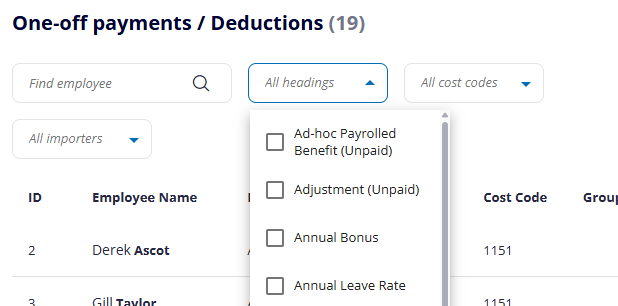
In the Payments & deductions tab, select the relevant heading from the drop-down list.
View the results in the employee's payment details
- In the main Payroll screen, scroll down to the list of employees.
- Click the ellipsis beside the employee's name.
- Click View Pay Details.
- Any one-off payments will be displayed along with their other payments and deductions for the period.

Was this article helpful?
That’s Great!
Thank you for your feedback
Sorry! We couldn't be helpful
Thank you for your feedback
Feedback sent
We appreciate your effort and will try to fix the article