- Single sign-on (SSO) allows your users to sign in to Cintra People using their existing organisational credentials, managed through your identity provider (IdP). Once configured, users are authenticated automatically without needing a separate password.
Cintra People supports SSO via the SAML 2.0 standard, which is compatible with most enterprise identity providers including Microsoft Entra ID, Okta, and Google Workspace.
You can configure multiple domains, each with its own identity provider, if required by your organisation.
For help with signing in to Cintra People using SSO, see Signing in to Cintra People.
Accessing SSO settings
To access SSO settings:
- Sign into Cintra People Payroll with your admin credentials.
- In the side menu, expand Settings and select Company settings.
- Scroll down to the Single Sign-on section.
- You can make changes to any existing domain SSO settings by clicking its Edit icon, or to set up a new domain, click Add domain.
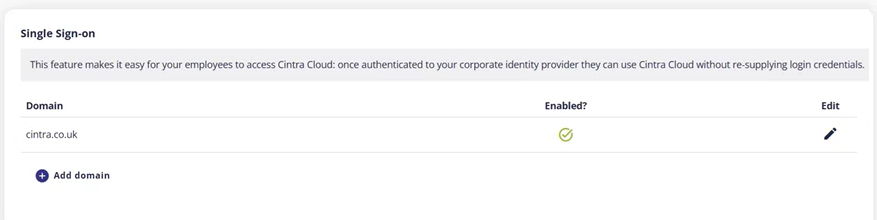
Domain settings
When creating a new or editing an existing domain, you will need to copy information from Cintra People to add TO your identity provider (IdP), as well as copy and paste information FROM your identity provider.
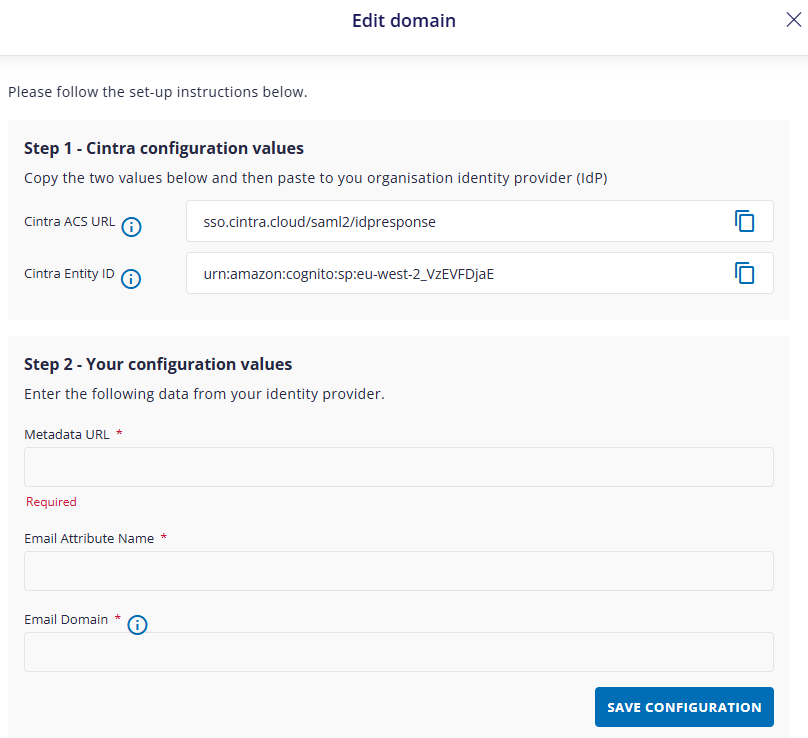
Step 1 - Cintra configuration values
You will need to paste the following information into your IdP configuration:
- Cintra ACS URL: The Assertion Consumer Service (ACS) URL is the endpoint where your identity provider sends the SAML authentication response after a user successfully signs in. Copy this value and paste it into your IdP configuration.
- Cintra Entity ID: A unique identifier for Cintra as the service provider (SP) within your IdP. This tells your identity provider which application is requesting authentication. Copy this value and paste it into your IdP configuration.
Step 2 - Your configuration values:
You will need to retrieve this information from your IdP configuration and paste it into the following fields:
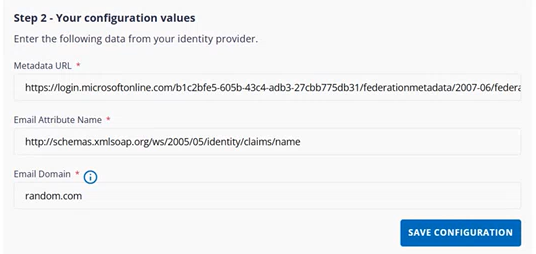
- Metadata URL: The URL of your identity provider's SAML metadata document. This file contains the technical information Cintra People needs to establish a trusted connection with your IdP, including certificates and endpoint details. You can usually find this in your IdP's SSO or application settings. You can look at the federation XML file and look for email address object identifier and that will give you the email attribute name, for example:

(click to expand)
- Email Attribute Name: The name of the attribute your identity provider uses to pass a user's email address in the SAML assertion. The default SAML email attribute used by most IdPs is:
- Email Domain: The email domain associated with your organisation (e.g. cintra.co.uk). Cintra People uses this to identify which users should be authenticated via SSO and route them to the correct identity provider at sign-in.Click Save Configuration after making any changes.
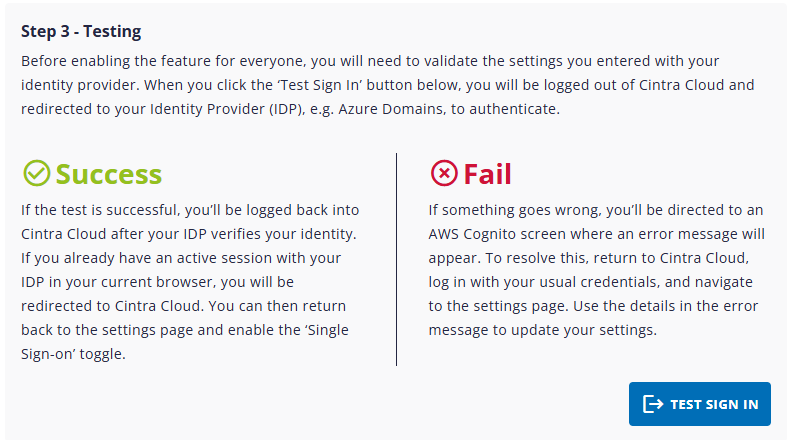
Step 3 - Testing
After adding all the information into the first two steps, click Test Sign-In. Depending on whether or not the test is successful, follow the Success or Fail steps shown on the screen.
Step 4 - Enabling SSO for users
If the test in step 3 was successful, the final step involves turning on SSO for all users.
To do this, click Enable SSO, then Yes to confirm. The next time any user with a matching domain logs into Cintra People Payroll, they will not be prompted to enter their password.
With SSO enabled, clicking Disable SSO will require all users to use their passwords when signing in.
Troubleshooting and FAQs
- Only by domain name. For example, you could turn on SSO for users with a CompanyA.com but not for CompanyB.com. However, you can not turn on SSO for users and not for others within the same domain.
Does Cintra automatically refresh metadata from the Metadata URL?
- No. Cintra does not automatically refresh metadata from your IdP's Metadata URL. If your identity provider rotates its signing certificates, you will need to update your metadata manually before the existing certificate expires. Check your IdP's certificate expiry schedule and plan accordingly.
Do I need to verify domain ownership before enabling SSO?
- No. Cintra does not require you to verify domain ownership before enabling SSO. You can proceed with configuration once you have the required values from your identity provider.
Why isn't SSO working? Common causes
If your users are unable to sign in after SSO has been configured, check the following:
- Incorrect email attribute name: the value entered must match exactly what your IdP sends in the SAML assertion.
- Wrong ACS URL: confirm the Cintra ACS URL was copied accurately into your IdP configuration with no trailing spaces or characters.
- Users not assigned to the IdP app: in most identity providers, users must be explicitly assigned to an application before they can authenticate through it.
- Domain mismatch: the email domain configured in Cintra must match the email suffix of the users trying to sign in.
Was this article helpful?
That’s Great!
Thank you for your feedback
Sorry! We couldn't be helpful
Thank you for your feedback
Feedback sent
We appreciate your effort and will try to fix the article