When adding an employee (for organisations that don't use positions)
For salaried employees:
- How does employee get paid?: Select Salary.
- Click Add Salary or Allowance:
- For salaried employees, enter the type of payment the employee receives (e.g. salary, car allowance)
- Enter how much money the employee receives for the salary / allowance per annum. The field on the right will calculate the actual pay, based on the FTE.
- Repeat these steps for each salary / allowance the employee receives.
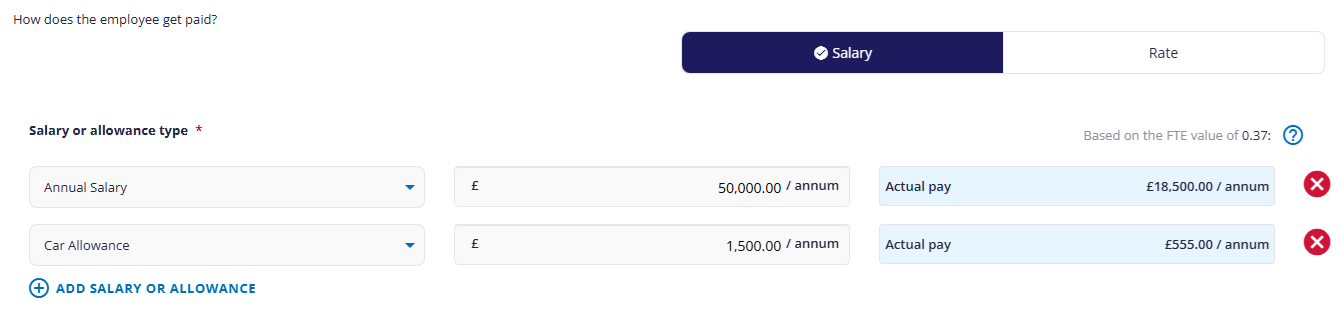
(click to expand)
Does the employee get paid other rates?: If the employee also receives an hourly rate (e.g. for overtime), click Yes, then follow the steps below for employees paid an hourly rate.
For employees paid an hourly rate:
- How does employee get paid?: Select Rate.
- Click Add Rate.
- Select what type of payment the employee is to receive (e.g. normal rate, double rate, or travelling time)
- Enter the hourly rate the employee will receive for that payment.
- Repeat these steps for each rate the employee receives.
Does the employee get allowances?: If the employee also receives an allowance (e.g. for a car allowance), click Yes, then follow the steps For salaried employees above.
When editing an employee
You will only be able to view or edit salary information once the employee has been created. You can then edit the employee to view the following information:
Overview of screen
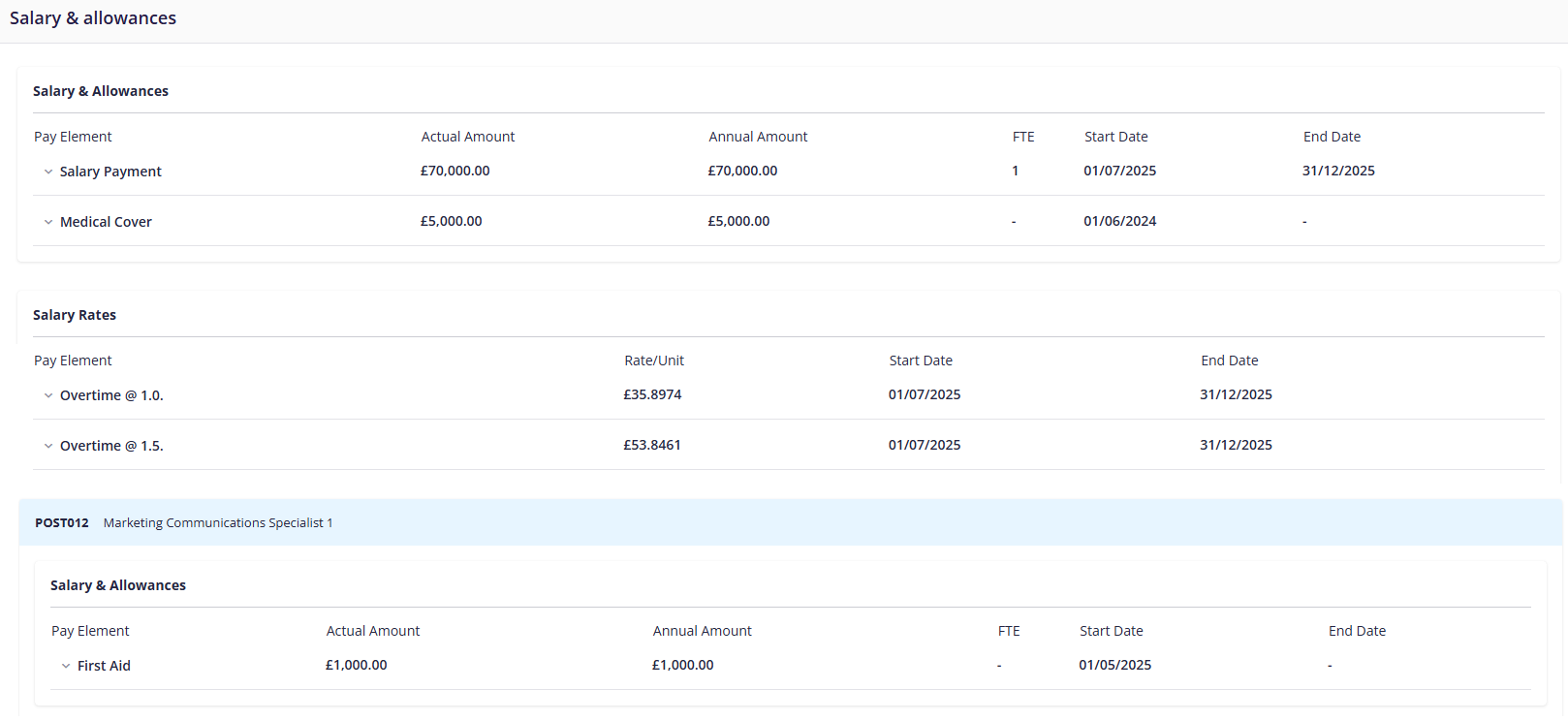
(click to expand the salary & allowances screen)
- The upper half of the screen lets you add further salaries & allowances / rates which aren't based on a specific position.
- The lower half displays all the positions assigned to the employee with all its associated payments. This section will only be visible to organisations that use positions.
Adding a new salary, allowance, or rate
- Choose whether you adding the salary / allowance / rate against the employee or one of their positions (if available).
- Click the relevant Add New button.
- Select the appropriate salary / allowance / rate from the drop-down.
- Enter the date when the employee started to receive the salary or allowance. If they no longer receive it, enter the end date as well.
- Enter the pay value received (either per hour or per annum).
- Click Save & Continue.
Editing an existing salary, allowance, or rate
Expand any section and click its Edit button  to make changes.
Previous article | Next article Employee: Costing details |
Was this article helpful?
That’s Great!
Thank you for your feedback
Sorry! We couldn't be helpful
Thank you for your feedback
Feedback sent
We appreciate your effort and will try to fix the article