As well as start date and contracted hours, this screen also lets you record when an employee leaves your organisation.
Adding general employment details
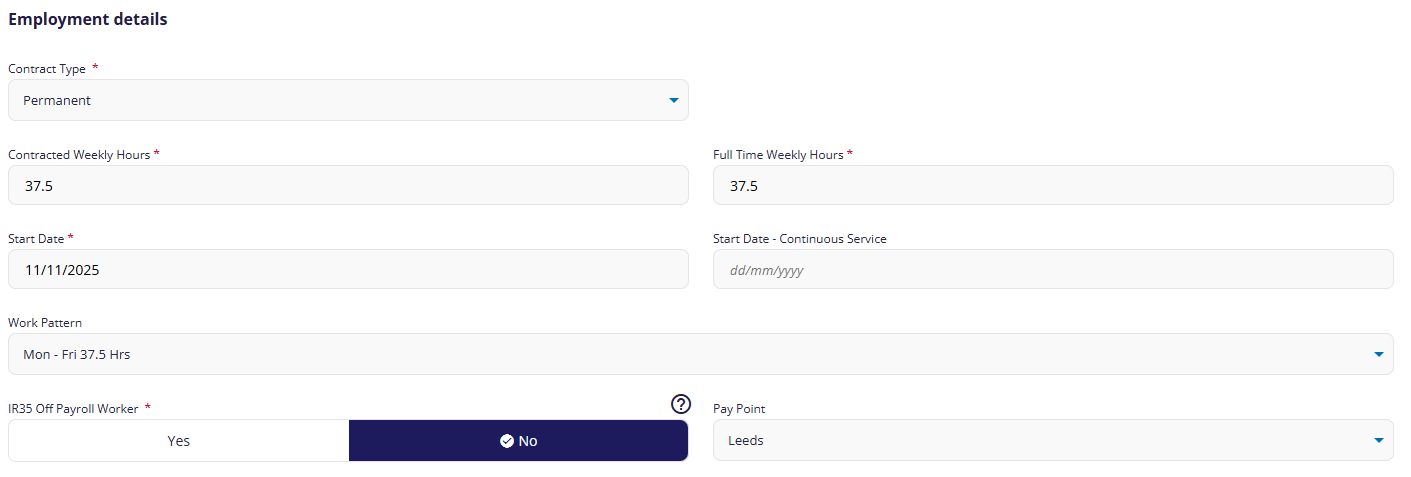
(click to expand the Employment Details screen)
Enter information into the following fields:
- Contract type: Select Permanent, Temporary, or Casual.
- Contracted Weekly Hours † : This value helps calculate the employee's FTE (which is used to calculate salaries, benefits etc).
- Full Time Weekly Hours † : This value helps calculate the employee's FTE
- Start Date: This date must be +/- 6 weeks from today.
- Start Date - Continuous Service: If the person is a returning employee, enter the start date of their original employment. This will link their previous and current employment record, and inform HMRC that they were not continuously employed for the entire period. This date cannot be later than the start date.
- Work Pattern: † If you're not sure which working pattern this employee will be following, speak to your Bureau or Cintra iQ administrator.
† These fields will only be visible on this screen if your organisation does NOT use positions. If you do use positions, weekly hours are set for each position. See Employee: Position details.
† If you are editing an employee, these fields will be found in the Working patterns tab instead.
IR35 off-payroll worker
If an employee is NOT a direct employee of your organisation, but is working through an intermediary, such as their own limited company, select Yes. If the person is a direct employee, select No.
For more information on determining whether an employee is IR35, see How do I identify a new starter within Cintra Cloud as an off payroll worker? - Cintra Support
Pay Point
Pay points let you group employees by department, location etc. These are used to filter and organise payroll data in reports.
Leaver details
- Click the Edit button.
- In the Is Employee Leaving? section, click Yes.
- Enter the Leaving Date and Reason, then click Save & Continue.
You can view all leavers by returning to the Payroll screen and clicking the Leavers tile.
Position details (editing only)
If you are editing the employee AND your organisation uses positions, you can view all their positions on this screen.
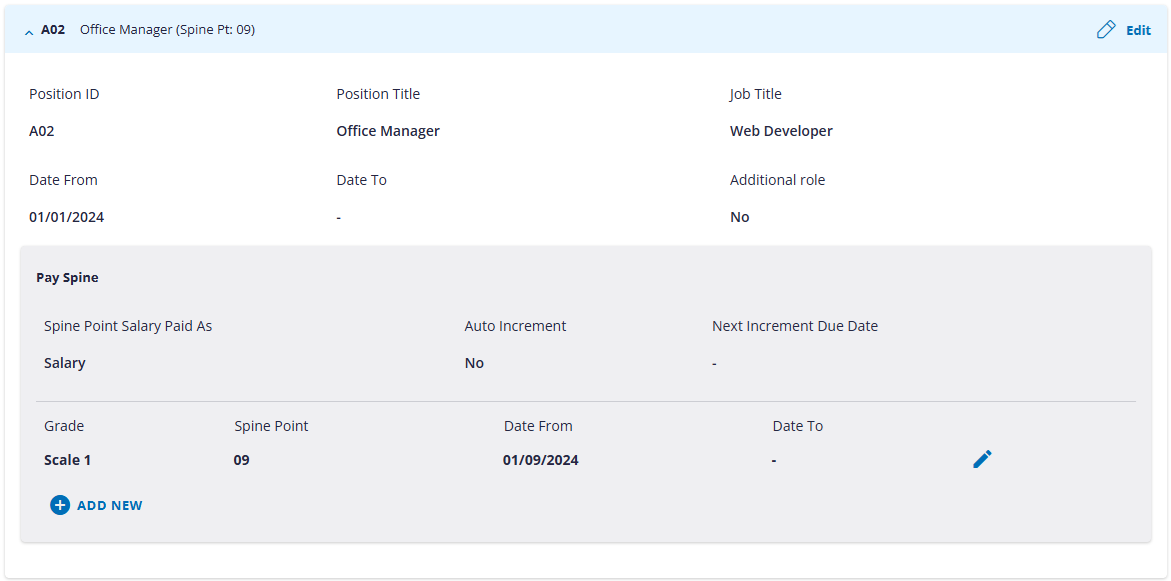
(Click to expand the position details screen)
If you are adding the employee AND your organisation uses positions, position information is added later in the set-up process. See Employee: Position details.
FAQs
How do I know which working pattern to choose?
If you don't know which pattern to use, you will need to speak to your Bureau or Cintra iQ administrator.
Previous article | Next article Employee: Salary & allowances |
Was this article helpful?
That’s Great!
Thank you for your feedback
Sorry! We couldn't be helpful
Thank you for your feedback
Feedback sent
We appreciate your effort and will try to fix the article