The Report Customisation screen in Cintra Payroll reports gives users greater control over how data is presented and exported. This screen allows you to tailor report layouts, select relevant fields, and apply filters.
Reports that are published from Cintra iQ can only be downloaded, not customised. See published payroll reports and published bureau reports.
Accessing the Report Customisation screen
There are several ways to access this screen, depending on which report you want to customise:
- From the Reports section of the Payroll tab.
- From any single payroll.
- From the Cintra Groups Dashboard.
- From the Payroll summary dashboard.
Viewing information in the Report Customisation screen
This screen lets you set control fields and data appear in your report.
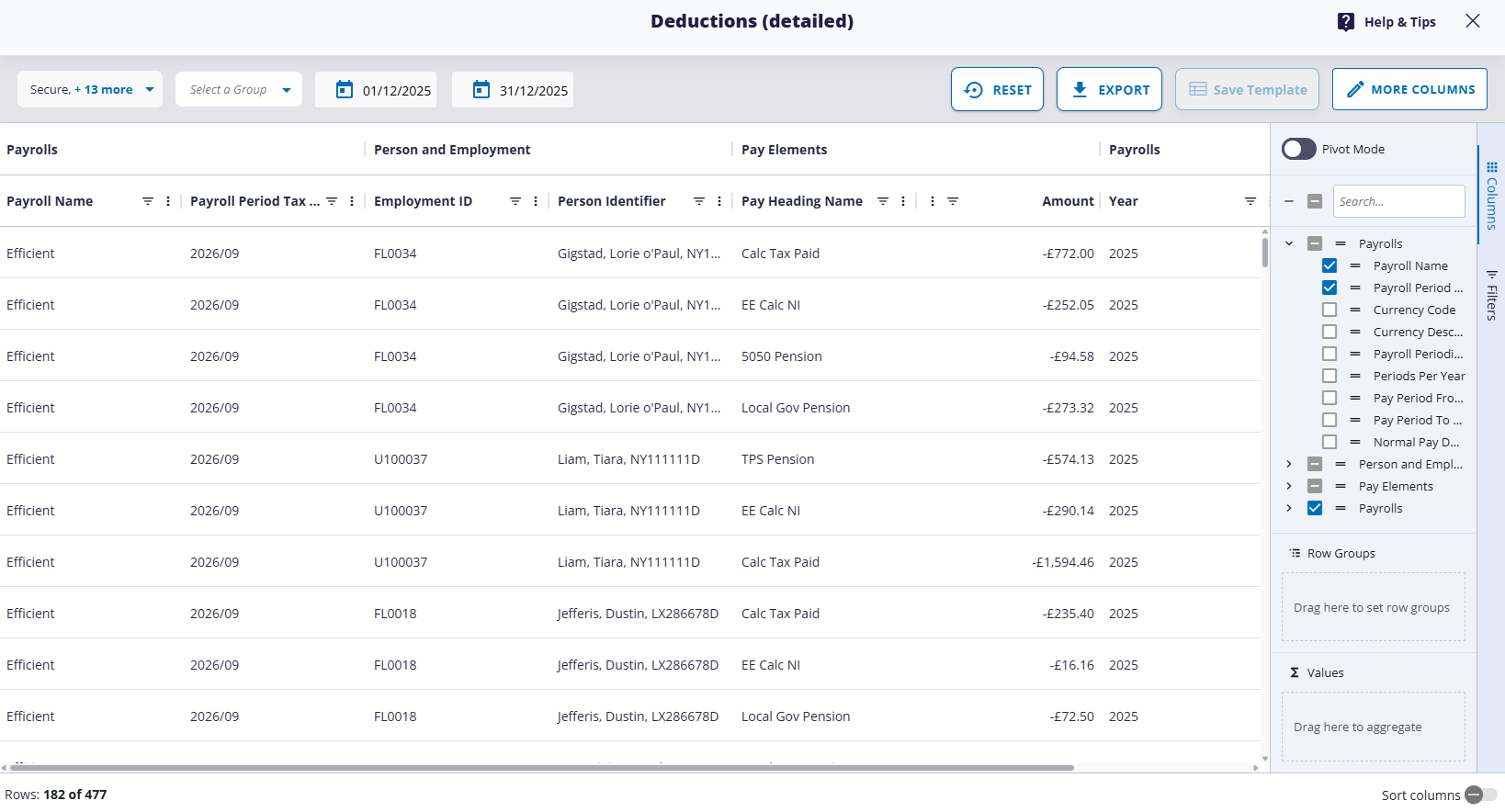
(click to expand)
- Select one or more payrolls (not available for single payroll reports)
- Select which Cintra Groups' information you'd like to view (not available for single payroll reports)
- Dates: Click the calendar icon(s) to enter the date range for the report.
- Warning: Some reports will display a warning if, for example, the payroll has not yet been finalised.

- Reset: This will remove any groupings, sorts, etc, and return the report to its default.
- Pivot mode: See Pivot Mode - Reorganise your data.
- Export / Save Templates: See Saving, sharing and exporting Reports.
- More Columns / Select columns / Row Groups / Values: See Managing columns, groupings, and values.
- Charts: See Visualising your data.
Was this article helpful?
That’s Great!
Thank you for your feedback
Sorry! We couldn't be helpful
Thank you for your feedback
Feedback sent
We appreciate your effort and will try to fix the article