- What is MFA?
- Why authenticate using an app?
- Setting up MFA using an authentication app
- Setting up MFA using an authentication app WITHOUT a camera
What is MFA?
Multi-factor authentication (MFA) provides more security when logging in, by combining something you know (your password) with something you have (your mobile phone).
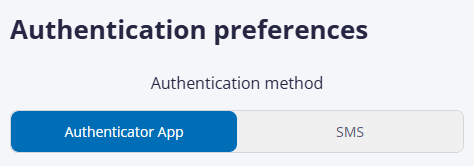
When you log in to Cintra People for the first time - or you reset your preferences - you'll be required to set up MFA, either by SMS or through an authentication app.
Why authenticate using an app?
Unlike receiving a code via SMS, you don't need a phone signal or to wait for a message to arrive. Authenticating via an app is quicker and uses the same authentication app that you may use to access other secure systems.
Setting up MFA using an authentication app
- If you already have an authentication app on your phone, follow the steps below.
- If you don't yet have an authentication app, you can download one for free from the Google Play or Apple App Store. Once you've installed the app:
- Open the authenticator app on your phone.
- Microsoft Authenticator: tap + at the top-right of the screen, then on the Add account screen, select "Other".
- Google Authenticator: tap the option to add a new account via QR code.
- In Cintra People, after you've signed in with your email address and password, the Authentication preferences screen will appear. In the Authenticator App tab, scan the barcode with your phone.
- If you are unable to scan the QR code with your camera, see Setting up ... WITHOUT a camera below.
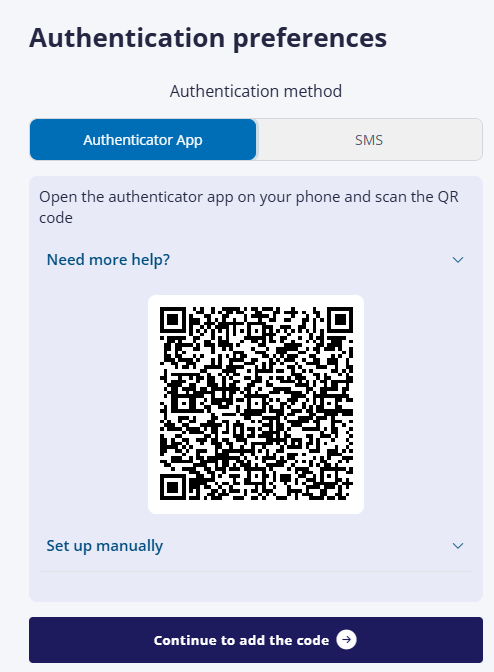
(click to expand the Authenticator preferences window)
- Click Continue to add the code.
- Enter the six-digit code from the app, then click Verify Code. Your mobile phone is now connected to your Cintra People account and you will be logged into Cintra People.
Setting up MFA using an authentication app WITHOUT a camera
To do this:
- Open the authenticator app on your phone:
- Microsoft Authenticator: tap + at the top-right of the screen, then on the Add Account screen, select "Other", then tap Enter code manually.
- Google Authenticator: tap + at the bottom-right of the screen, then Enter a set up key.
- Switch to Cintra People and expand the Set up manually section.
- Copy the Account name by clicking the copy icon -

- Switch to your authenticator app and paste the account name into the Code name / Account name field.
- Switch to Cintra People and copy the Secret shared key.
- Switch to your authenticator app and paste the shared key into the Your key / Secret key field.
- Click Add / Finish. Your authenticator app will now start displaying a six-digit code which will change around every 30 seconds.
- Remember / copy the latest code, switch to Cintra People, tap Continue to add the code, enter / paste the six-digit code, then tap Verify Code.
- Your mobile phone is now connected to your Cintra People account and you will be logged into Cintra People.
Was this article helpful?
That’s Great!
Thank you for your feedback
Sorry! We couldn't be helpful
Thank you for your feedback
Feedback sent
We appreciate your effort and will try to fix the article