Accessing and logging in to Cintra People

Modified on Fri, 2 Jan at 2:12 PM

This article explains how to access and log in to Cintra People for the first time, including how to set up your account and configure multi-factor authentication (MFA). For security, you'll need to verify your identity using either an authenticator app or SMS codes when logging in.


TABLE OF CONTENTS


Receiving your log in details


Once an account has been set up for you in Cintra People, you will receive an email inviting you to claim your account.


email from cintra people

(click to expand)


The Login button contains a unique URL that will let you log into Cintra People for the first time. 


Registering and logging in for the first time


For Employee Hub users


Employee Hub is the area of Cintra People that lets you view all your payroll and employment information. 


       (click to expand)
  1. Within the email you received from Cintra People, click Login.
  2. In the Register Account screen, enter your email address and date of birth.
    • These must both exactly match the email and date of birth registered for you in Cintra People. 
  3. Create and confirm a password that meets all the criteria listed.
  4. Click Continue.
  5. Next, you must set up your authentication preferences. 


For all other users (bureau users, HR admins, payroll users)


The process for logging in for the first time is very similar for other roles, except that you do not need to enter your date of birth. 


  1. Within the email you received from Cintra People, click Login.
  2. In the Enter new password screen, create and confirm a password that meets all the criteria listed.
  3. Click Create Password.
  4. On the Welcome screen, enter your email address, then click Continue.
  5. Enter your new password, then click Continue.
  6. Next, you must set up your authentication preferences.


(click to expand)


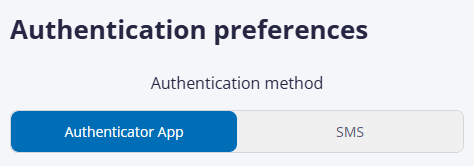
Authentication preferences


To log in for the first time (or if your administrator resets your authentication), you will need to receive a code to your mobile phone from Cintra People. You can receive this code either: 

  • Through an authentication app or;
  • Via SMS message. 


app or sms


Setting up login using an authentication app


Authentication apps such as Google Authenticator or Microsoft Authenticator, are the easiest and quickest way to log into Cintra People. They are more secure and don't require a signal to receive a code. 


If you already have an authentication app on your phone, follow the steps below. If you don't yet have an authentication app, you can download one for free from the Google Play or Apple App Store. Once you've installed the app:


  1. Open the authenticator app on your phone.
    • Microsoft Authenticator: tap + at the top-right of the screen, then on the Add account screen, select "Other".
    • Google Authenticator: tap the option to add a new account via QR code. 
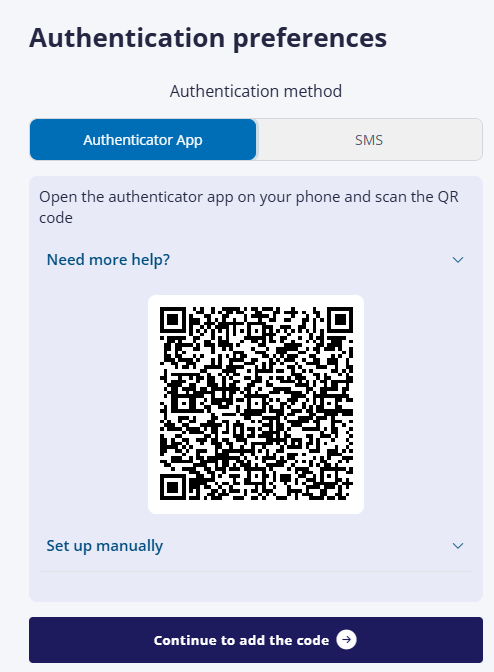
  2. In the Authenticator App tab, scan the barcode with your phone.
  3. In Cintra People, click Continue to add the code.
  4. Enter the six-digit code from the app, then click Verify Code. Your mobile phone is now connected to your Cintra People account and you will be logged into Cintra People.


Setting up login using an authentication app WITHOUT a camera


Note: If are you using your mobile phone to register, you will not be able to use its camera to scan the QR code and will need to set up authentication manually instead. 


To do this:

  1. Open the authenticator app on your phone.
    • Microsoft Authenticator: tap + at the top-right of the screen, then on the Add Account screen, select "Other", then tap Enter code manually.
    • Google Authenticator: tap + at the bottom-right of the screen, then Enter a set up key.
  2. Switch to Cintra People and expand the Set up manually section.
  3. Copy the Account name by clicking the copy icon -  
  4. Switch to your authenticator app and paste the account name into the Code name / Account name field.
  5. Switch to Cintra People and copy the Secret shared key.
  6. Switch to your authenticator app and paste the shared key into the Your key / Secret key field.
  7. Click Add / Finish. Your authenticator app will now start displaying a six-digit code which will change around every 30 seconds.  
  8. Remember / copy the latest code, switch to Cintra People, tap Continue to add the code, enter / paste the six-digit code, then tap Verify Code.
  9. Your mobile phone is now connected to your Cintra People account and you will be logged into Cintra People.


Setting up login using SMS


Note: We recommend you log in using an authentication app (see above), as it's quicker, more reliable, and more secure. The ability to authenticate via SMS will soon be withdrawn.


If you don't have a smart phone or you can't install an authenticator app, you will need to receive and enter a code via SMS message. To do this:


  1. Click the SMS tab. 
  2. Enter your mobile number. 
  3. Click Register. You will be prompted for an SMS code next time you log into Cintra People. 


Logging in after initial setup


For future logins, after you have entered your email and password and depending on how you set up your authentication, you will be asked to either:

  • Enter the six-digit Cintra Cloud code from your authenticator app or;
  • Enter the six-digit code that has just been sent to you via SMS.


You may be asked if you want to set up a passkey, which can avoid the need to enter a code each time you log in. If you are prompted to set up a passkey and want to know more, see Setting up and using Passkeys.


Switching between authenticator app and SMS authentication


You can change your authentication method at any time:

  1. Log into Cintra People. 
  2. Click your name at the top-right of the screen. 
  3. Click Authentication preferences.
  4. As when you logged in for the first time, either:
    • In the Authenticator App tab, scan the QR code, then enter the six-digit code.
    • In the SMS tab, enter/check your mobile phone number is correct. 
  5. Click Save Preferences. 


The next time you log into Cintra People, you will be asked to use the new authentication method you chose. 


Signing out


It is good practice to always sign out of Cintra People when you have finished using it. To do this, click your name at the top-right of the screen, then click Sign Out.


FAQs

I've forgotten my password. What should I do?

  1. Go to cintra.cloud.
  2. Enter your email address, then click Continue.
  3. Click FORGOT YOUR PASSWORD.
  4. Enter your email address again, then click Continue
  5. If a matching account is found, you will receive an email with a link to reset your password.


I've lost/damaged/replaced my mobile phone. What should I do?


Speak to the Cintra People administrator in your organisation. Cintra cannot reset your password or authentication details. 


Once your authentication has been reset, you will be prompted to set it up again next time you log in.


Was this article helpful?

That’s Great!

Thank you for your feedback

Sorry! We couldn't be helpful

Thank you for your feedback

Let us know how can we improve this article!

Select at least one of the reasons
CAPTCHA verification is required.

Feedback sent

We appreciate your effort and will try to fix the article