During each payroll period, you should check whether there are any major changes in employee pay and deductions between the current and previous pay period. The Pay Variance Report helps you catch and resolve any issues as early as possible.
TABLE OF CONTENTS
- Accessing the report
- Selecting a payroll
- Setting the report criteria and display information
- Viewing the report / variance flags
- Changing columns and filters
Accessing the report
To access this report either:
- Open any payroll, click the Reports tab, then click the Pay Variance report.
- Click Reports in the side menu, click the Pay Variances tile, then open the Pay variance report

- Select which payroll you would like to view in the report. You can filter the report further by selecting one or more groups.

Selecting a payroll
The report will default to the current payroll period, but you can click the arrows to view other periods.

Setting the report criteria and display information
By default, the pay variance report will list every employee on the payroll three times to show.
- The first row shows pay information for the current period.
- The second shows pay information for the previous period.
- The third shows the variance between the current and previous period.
All employees will be listed, even if their pay hasn't changed between periods. To view only employees with pay variances:
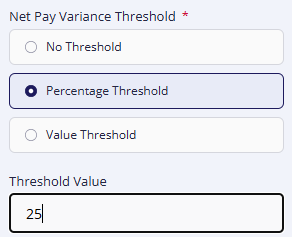
- Select either Percentage or Value Threshold.
- Enter the size of the variance into the Threshold Value field (e.g. 20% or £100).
By default, both starters and leavers are shown in this report. However, they can skew results (since their previous / current net pay will be 0), so you can remove them by unchecking the Include Starters and/or Include Leavers boxes.
You can make the report more compact by viewing only one row per employee. To do this, select which row (current, previous, or variance) from the Display list.
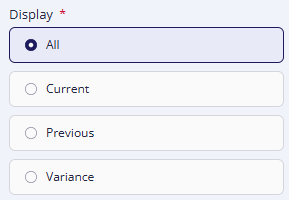
Click Apply after making any changes.
Viewing the report / variance flags
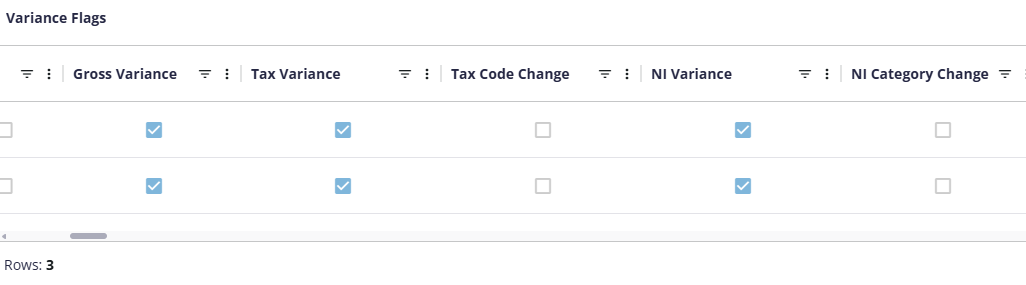
To help you identify the reason for variances, a series of variance flags will be shown beside each employee. Use the horizontal scrollbar at the bottom of the report to view all these flags.
Where a box is checked, this will indicate when the employee's pay changed, e.g. if there were changes in tax codes or pension contributions.
Changing columns and filters
As with other reports, you can change which columns and data are shown in the report by clicking the Columns or Filters tabs in the side panel. For more information, see Managing columns, groupings, and values. |  |
Was this article helpful?
That’s Great!
Thank you for your feedback
Sorry! We couldn't be helpful
Thank you for your feedback
Feedback sent
We appreciate your effort and will try to fix the article