Nearly every employee is eligible to be added to a company pension scheme, either through automatic enrolment regulations or a specific clause in their contract. To find out more, see Pensions and automatic enrolment.
The new starter process lets you add employees to a pension scheme and set their contributions.
TABLE OF CONTENTS
Adding a new employee
When you are adding an employee, you must choose:
- Choose whether you want to a single contribution across all roles or, for employees with multiple positions, separate contributions for different positions.
- This option will not present if your organisation does not use positions
- If you select multiple positions, you must select which position to assign a contribution to.
- If you chose single contribution, you must then choose how they are to be assigned to a pension scheme:
- Either automatic or contractual enrolment -, or in a few specific circumstances - excluded from any pension scheme)
- Select a suitable pension scheme from the list. Selecting a scheme will show its details, including the default employer / employee contributions (if set).
- When adding a new employee, you can only set contribution rates for contractual employees. To set rates for automatic enrolment, you must finish adding the employee, then edit them.
- For contractual pensions only: Select a contribution rate for both the employer and employee.
- You must choose between a percentage contribution OR an amount contribution
- For percentage contributions, if you don't wish to use the default values, turn off Use the default rates and enter a new rate.
- For multiple positions, repeat steps 1-4 for each position you want to assign a contribution to.
- Click Accept rates and continue.
Excluding from automatic enrolment
There are only a few reasons why an employee should be excluded from automatic enrolment. For more information, see Pensions and automatic enrolment.
Editing an existing employee
When editing an employee, click the Pension membership tab to view a list of all pension contributions. The Show me only active contributions toggle lets you hide any pension memberships that have passed their end date.
To add a new contribution, click Add new contribution. The process is the same for adding a new employee.
If the employee is a non-eligible jobholder and isn't enrolled on any pension scheme, see Managing opt-in requests.
Editing an existing contribution
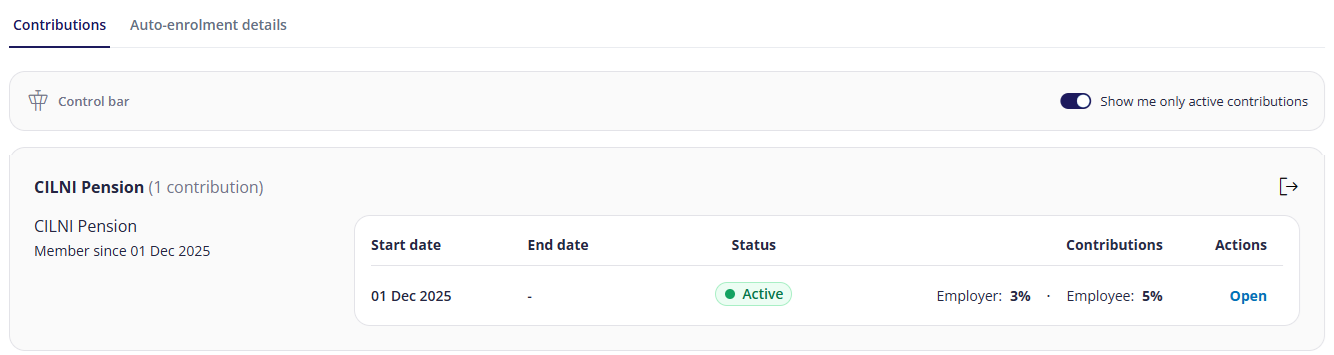
To edit any existing contribution, click Open in its Actions column. From here you can:
- Add new contribution rates:
- Select whether the new rate will apply from the current/next payroll period, or from a specific date.
- Set new employer and employee contributions as either a percentage (%) or fixed amount (£).
- Click Set New Rates.
- You must ensure that the dates the new rate will apply do not overlap with any existing contributions.
- Edit contribution rates:
- This will affect the employee's current pension contribution.
- As well as the contribution rates, you can also edit the start and/or end date - or remove the end date to keep the pension contribution indefinite.
- Specify start/end date and employer/employee contribution as normal.
- End contribution:
- Specify when the contribution will end.
- Delete
If the contribution already has an end date, you will only be able to edit or delete the contribution.
Managing opt-in requests
If the employee has the status of non-eligible jobholder (e.g. if their salary isn't high enough) AND they are not currently enrolled on any pension schemes, then you can choose to opt them in for automatic enrolment selection.

- Click Process opt-in request.
- On the next screen, the date of their latest opt-out is shown. If this is less than 12 months ago, you can either Discard or Continue. However, if it's more than 12 months ago, you must Continue.
- Enter the date you received the opt-in request from the employee, then click Next.
- Select which pension scheme the employee should be enrolled on, then click Next.
- On the final screen, you are shown a summary of what will happen once you click Create Request.
Once you've created the request, a summary of the request will be displayed in the Opt in and join requests tab.
Leaving or opting-out of a scheme
If you want to completely remove an employee from a pension scheme:
- Click the Leave icon

- If employee is to leave the scheme and stop all contributions, turn on the I confirm toggle, enter a leaving date, then click Leave Scheme.
- If the employee has been automatically enrolled into the scheme and wants to opt out:
- Click the Opt Out tab.
- Enter the date you received the notification to opt out the employee.
- Enter the date the employee should leave the scheme.
- Click Continue.
- Select in which payroll any refunds should be processed (current or next)
- Click Opt Out.
If the employee wishes to end contributions but remain in the scheme, see Editing an existing employee's pension contributions above.
Viewing auto-enrolment details
Click the Auto-enrolment details tab. In these three tabs, you can view:
- Information about each of the automatic enrolment assessments performed on the employee
- Information about automatic enrolment postponements
- Any opt-in and requests to join pension schemes
Automatic enrolment assessments and postponements are currently performed in Cintra iQ. Either speak to your bureau or view the following articles:
FAQs
- Can I apply both a percentage and fixed contribution to an employee's pension?
- What if I don't know whether a new employee is to receive an automatic enrolment / contractual pension?
- What happens if I leave a scheme where I still have an active contribution?
- I've made a mistake. Can I change a historical start date of a contribution?
- How can I implement a delay for new employees to be added to a pension scheme?
- What are the implications of editing a historical pension contribution for the previous / current tax year?
Can I apply both a percentage and fixed contribution to an employee's pension?
- No. For each pension scheme you assign to an employee, you must select a percentage OR a fixed contribution.
What if I don't know whether a new employee is to receive an automatic enrolment / contractual pension?
- Record the employee as automatic enrolment, and you can change it later if necessary. Remember that when you select automatic enrolment, the employee is only being assessed, they will not start to receive the pension until their first pay period (at earliest).
What happens if I leave a scheme where I still have an active contribution?
- All contributions within that scheme will be stopped automatically.
I've made a mistake. Can I change a historical start date of a contribution?
- Yes. Everything will be recalculated in the next payroll period.
How can I implement a delay for new employees to be added to a pension scheme?
- This can only be done in Cintra iQ. See How do I set auto enrolment postponements?
What are the implications of editing a historical pension contribution for the previous / current tax year?
- For the current year, calculations will be performed automatically and all adjustments will appear on the payslip.
- For previous tax years, you will need to make manual adjustments to refund / charge the employee accordingly.
Previous article | Next article Employee: Occupational sick pay |
Was this article helpful?
That’s Great!
Thank you for your feedback
Sorry! We couldn't be helpful
Thank you for your feedback
Feedback sent
We appreciate your effort and will try to fix the article