Important: This feature has not yet been fully released to customers. Check the release notes for the latest updates.
When your NEST pension submissions are managed by the bureau, the full process is included: enrolment, contributions, and payment authorisation.
You have access to the Pension Submissions dashboard, where you can monitor the status of submissions and check what data has been sent to NEST on your behalf.
TABLE OF CONTENTS
Viewing the Pension Submissions Dashboard
Go to the Pension submissions menu. The dashboard shows all payrolls configured for NEST submission.
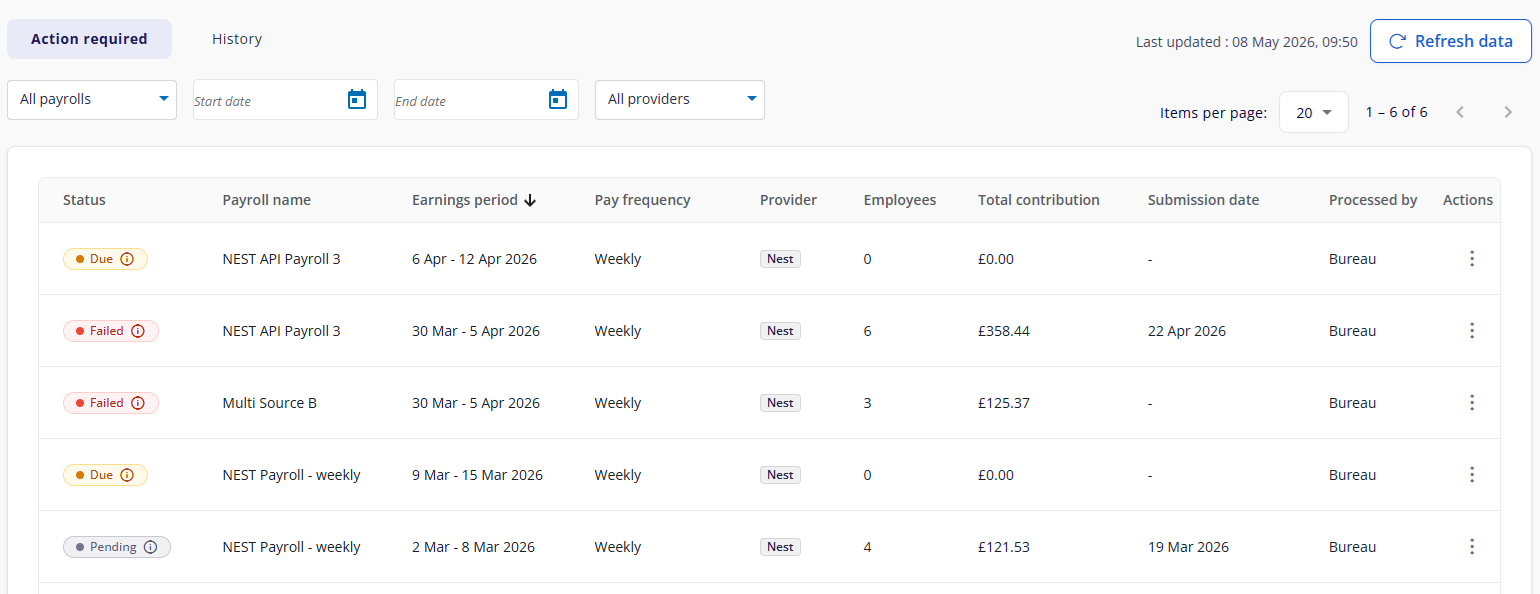
Each row displays:
Status: the current state of the submission (see below)
Payroll name: the payroll the submission relates to
Earnings period: the pay period covered
Pay frequency: how often the payroll runs
Employees: number of employees included
Total contribution: the total pension contribution amount
Submission date: when the submission was sent to NEST
Processed by: Bureau (Bureau submitted on your behalf)
Submission statuses
| Status | Meaning |
|---|---|
| Due (Action required tab) | The payroll period is closed and ready to submit. The bureau will action this. |
| Pending (Action required tab) | Data has been sent to NEST and is awaiting a response. |
| Failed (Action required tab) | Something went wrong with the submission. The bureau will investigate and resolve this |
| Completed (History tab) | The submission was successful. |
Checking submission data
To see what was included in a submission, select View data from the Actions menu. This opens the submission report, where you can check the enrolment (if applicable) and contribution data sent to NEST for that period.
Need help?
If you have questions about a submission or notice something that doesn't look right, contact your Bureau.
Was this article helpful?
That’s Great!
Thank you for your feedback
Sorry! We couldn't be helpful
Thank you for your feedback
Feedback sent
We appreciate your effort and will try to fix the article