Important: This feature has not yet been fully released to customers. Check the release notes for the latest updates.
If you run payroll on behalf of other customers or organisations, you can now submit pension data directly to NEST, including enrolment, contributions, and payment authorisation.
For general troubleshooting on NEST pension submissions, see our troubleshooting guide.
TABLE OF CONTENTS
- 1. Add your NEST credentials
- 2. Setting Up a payroll for NEST submission
- 3. Submitting pension data
- 4. Submission statuses
- 5. Submission failures
- 6. Fixing incorrect Cintra iQ setups
- 7. NEST configuration issues (that the customer must resolve)
- 8. Current Limitations
1. Add your NEST credentials
You will only need to perform this step once (unless your NEST credentials change).
- In the Bureau tab, go to Settings > Configuration > NEST.
- Enter the bureau NEST username and password.
- Click Connect.
A message will appear to inform you that your connection is successful.
2. Setting Up a payroll for NEST submission
Before a payroll can appear on the Pensions Submissions dashboard, you must configure it. To do this:
- In the side menu of the Bureau tab, click Organisations.
- Click the settings icon ⚙️ beside the organisation you want to configure, then select Pension submission settings.
- Click Nest. For each payroll you want to set up, you'll need to enter the following information:
- Turn on the Enable submission toggle.
- Start date: Choose the date from which submissions should begin. Periods before this date won't appear.
- End date: Leave blank unless you're stopping NEST submissions for this payroll.
- Managed by: Select either Employer (managed by the organisation) or leave as default Bureau.

3. Submitting pension data
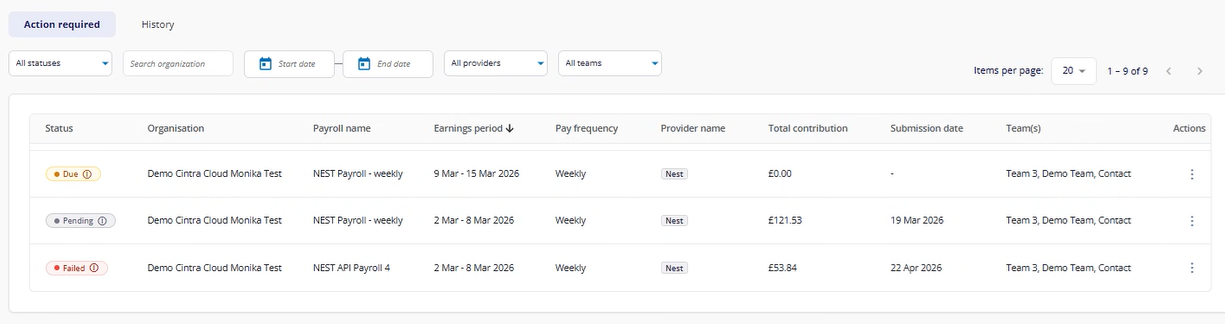
- In the side menu of the Bureau tab, click Pension submissions.
- Payrolls with a closed period that are ready to submit will show as Due.
- Check the numbers: compare the "Total contributions" column against your payroll report to make sure they balance
- Select Submit from the Actions menu.
- The status changes to Pending: this is expected. NEST can take up to 15 minutes for contribution data and up to 45 minutes for enrolment data.
- You can submit for other organisations while you wait.
- Multiple organisations are included in one dashboard.
4. Submission statuses
The following statuses can be viewed against each payroll in the Action required or History tabs.
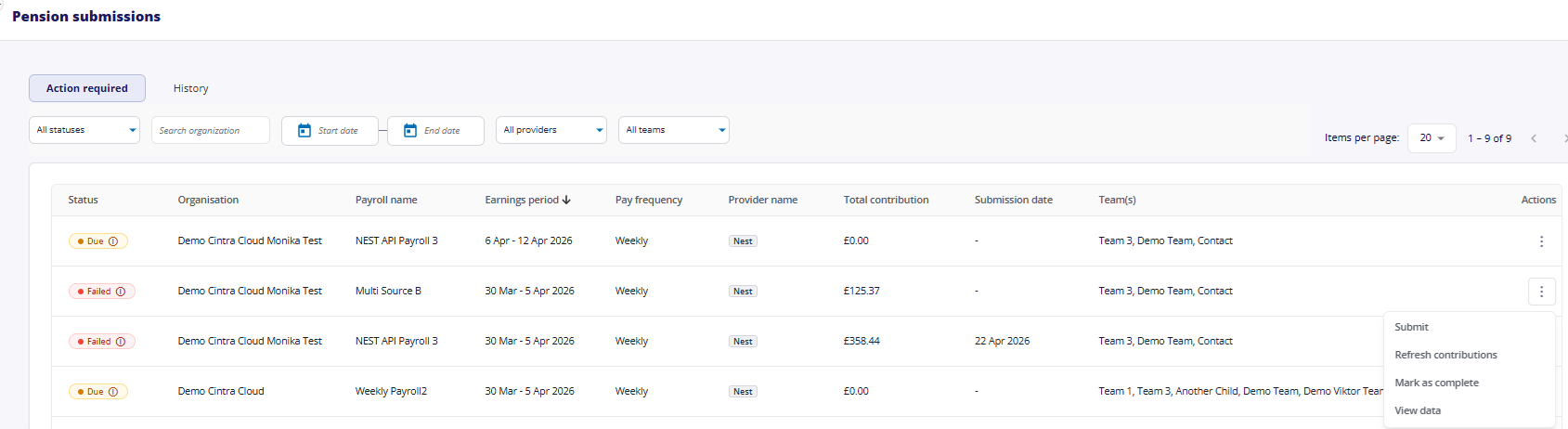
| Tab / status | Meaning | Available actions |
|---|---|---|
| Action required tab Status = Due | Payroll period is closed and ready to submit. | Action required: Submit Only select Mark as complete if you are NOT able to submit via Cintra People. Select Refresh contributions to pull the latest contribution values before submitting. Use this if pension values have changed since the period was closed, or if contributions weren't pulled when the period closed. Click View data to see enrolment and contributions data. |
| Action required tab Status = Pending | Data sent to NEST, waiting for response. This can take up to 15 minutes to submission data and 45 minutes for enrolment data. | Action required: check status after 15/45 minutes. Click View data to see what was included. |
| Action required tab Status = Failed | Something went wrong. Either we couldn't connect to NEST, or individual employee records have errors. | Action required: Use View data to see the errors and fix them on iQ/Nest, then Submit again. Select Refresh contributions to update contribution data before resubmitting. Use if Cintra iQ setup or pension values have changed since the original submission attempt. |
| History tab Status = Completed | Successful submission. Your submission has been automatically moved from the Action required tab to the History tab. | No action needed. You can click View data to check what was included. |
Clicking view data will open Cintra People's report window. For more information, see Customising and viewing reports.
5. Submission failures
If a submission fails, go to Actions > View data to find out what went wrong. There are three types of errors:
- Submission errors: The data couldn't be sent at all.
- Contribution errors: The data was sent, but there are problems with specific employees.
- Payment errors: Where we are unable to authorise a payment.
Submission errors
| Error | Cause | Fix |
|---|---|---|
| Invalid header or trailer record / incorrect payment source or frequency | Mismatch between NEST and Cintra iQ (employer reference, payment source, period dates, or payment date) | Check iQ setup. See Section 6 |
| NEST employer reference does not conform to expected format | Employer NEST reference number is wrong | In iQ: Payroll → Payroll Setup → Employer Setup → AE Settings → Pension Scheme Reference |
| Payment source element is mandatory | Payment source missing or incorrect | Same path as above |
Contribution errors
| Error | Cause | Fix |
|---|---|---|
| Earnings period or payment source mismatch | Employee's data doesn't match the schedule | Check the earnings period, payment source, and period start/end date on iQ match the NEST schedule |
| Contributions already submitted for this member | Duplicate submission | Log into NEST to verify |
| NI number / alternative ID matches another member | Duplicate or incorrect ID | Correct employee details in iQ and/or NEST |
| Contributions below minimum for pension group | Employee in wrong group or minimum not met | Check pension group assignment in NEST; may need a new group |
Payment errors
| Error | Cause | Fix |
|---|---|---|
| No active Direct Debit mandate | Direct Debit not set up or not yet processed | Cintra People only supports Direct Debit. Ask the client to set up a Direct Debit mandate. Allow up to 5 working days |
6. Fixing incorrect Cintra iQ setups
Issue 1: Incorrect payment due date
Problem: The payment due date on the NEST file doesn't match what NEST expects.
Solution A: Update the provider pay date:
Payroll → Payroll Setup → Third Party Association.
Locate NEST under Pension Scheme Providers → open Payment Settings tab.
Select the correct day of the month; ensure it is set to the following month
Make sure you select the Static option if the pay date falls on a UK non-banking day
To verify the expected date: NEST → find employer → Manage contributions → Payment due date column.
Solution B — Change the payment due date calculation basis (if Solution A doesn't resolve the problem):
Payroll → Payroll Setup → Employer Setup.
Open the employer record → PAYE & Payrolls tab → open the payroll record.
Change Pension Output Payment Due Date based on to one of:
| Option | When to use |
|---|---|
| Pay Period End Date | Uses the last day of the payroll period as the reference. |
| Paydate | Uses the actual employee pay date as the reference. |
| Pay Reference Period End Date | Uses the last day of the calendar month in which the pay date falls. Same as above, but retained for payrolls where previously configured. |
| Custom Period End Date | Uses the end of a custom pension output period. Only available if Custom Period is selected in the Pension Output Period field. Use when the pension provider uses a non-standard period (e.g. tax months, 6th–5th). |
Issue 2: Incorrect period start and end dates
Problem: Earnings period dates on the NEST file don't match the payroll period.
Solution:
Payroll → Payroll Setup → Employer Setup.
Open employer record → PAYE & Payrolls tab → open payroll record
Change Pension Output Period based on to: Pay Reference Period, Pay Period, or Custom Period
To verify: NEST → find employer → Manage contributions → Earnings period column.
Issue 3: Incorrect payment source
Problem: Payment source in the NEST file doesn't match the NEST portal.
Solution:
Payroll → Payroll Setup → Employer Setup.
Open employer record → AE Settings & Information tab → open Pension Scheme Reference.
Update the Payment Source field to match the NEST portal value exactly.
To verify: NEST → find employer → Manage contributions → Payment source column.
Issue 4: Incorrect NEST reference number
Problem: Employer NEST reference number (EMP) is wrong.
Solution:
Payroll → Payroll Setup → Employer Setup
Open employer record → AE Settings & Information tab → open Pension Scheme Reference
Correct the Reference field — must match exactly what is shown in the NEST portal
To verify: NEST → find employer → NEST employer ID is shown on the main screen.
Issue 5: Incorrect or missing pension group
Problem: Employees aren't assigned to the correct pension group, or the group doesn't exist in iQ.
Solution: If the pension group exists ...
Assigning an employee to a pension group:
Open the employee's Employment record → Expenses/Benefits.
Select the correct Pension Pay Group from the dropdown.
Solution: If the pension group doesn't yet exist:
Creating a new pension group in iQ:
Definitions (top menu) → Lookups
Search for Pension Groups in Lookup Administration
Click Insert, enter the group name exactly as it appears in NEST (case-sensitive)
To verify the group name: NEST → find employer → Manage groups.
Issue 6: Zero contributions
Problem: Total contributions showing as zero and the contribution tab is missing under view data.
Solution:
- Check if the relevant period contributions schedule is present in NEST.
- If you don't have the contribution schedule on NEST, you won't be able to submit any data.
- If you make any updates in NEST, select Refresh Contributions in the Actions menu to retrieve the values once the contribution schedule is due on NEST.
7. NEST configuration issues (that the customer must resolve)
These cannot be fixed in Cintra iQ. The customer must make changes in their NEST account.
Issue 1: Earnings period starting on the 31st
Problem: Some NEST accounts have earnings periods starting on the 31st of the previous month (e.g. 31/12/2025–30/01/2026 instead of 01/01/2026–31/01/2026). Cintra iQ does not support this.
Fix:
Ask the customer to create a new pension group in NEST — copy an existing group rather than starting from scratch.
In the When is your current earnings period due to end section, set the value to 31st.
Transfer workers: NEST → Manage Workers → select employees → Change group → select new group and today's date → Move.
For further guidance: How to add a new group | Nest pensions
Issue 2: Payment frequency set to Tax Monthly or Tax Weekly
Problem: NEST supports Tax Monthly and Tax Weekly; Cintra iQ does not.
Fix:
Ask the customer to create a new pension group in NEST — copy an existing group rather than starting from scratch.
In Payment frequency, select one of: Monthly, Weekly, Four weekly, or Fortnightly. Do not select Tax Monthly or Tax Weekly.
Transfer workers: NEST → Manage Workers → select employees → Change group → select new group and today's date → Move.
For further guidance: How to add a new group | Nest pensions
Issue 3: Pay date set as number of days after period ends (non-monthly payrolls)
Problem: For non-monthly payrolls (e.g. weekly), NEST calculates a different pay date each period. Cintra iQ cannot accommodate a variable pay date.
Fix:
Discuss the appropriate fixed pay date with the customer before making changes — it may affect their cash flow.
Ask the customer to create a new pension group in NEST — copy an existing group rather than starting from scratch.
In Payment due date, select specific day of the following month (e.g. the 10th).
Transfer workers: NEST → Manage Workers → select employees → Change group → select new group and today's date → Move.
For further guidance: How to add a new group | Nest pensions
Issue 4: Payment authorisation
Problem: Cintra People completes the full end-to-end process, including payment for the Direct Debit method only.
Fix: The customer must submit directly via Cintra People, including payment authorisation.
Issue 5: My organisation has multiple NEST credentials
Assuming you are a delegate under every scheme, you can set yourself up as a Nest Connector and access all your schemes under one log in for the API submission. For more information, see Set up Nest Connect with Nest Pensions | Nest Pensions.
8. Current Limitations
| Limitation | Detail |
|---|---|
| Direct Debit only | Debit card and Direct Credit are not supported. Customers must use Direct Debit |
| NEST only | People's Pension API integration is not yet available |
| Monthly pay date only | Regardless of the periodicity of the payroll, the payment date for NEST can only be once a month |
Was this article helpful?
That’s Great!
Thank you for your feedback
Sorry! We couldn't be helpful
Thank you for your feedback
Feedback sent
We appreciate your effort and will try to fix the article