TABLE OF CONTENTS
How to import data
Once you have your .csv or .txt file, you are ready to import it into Cintra iQ.
- In Cintra iQ, open the File menu and select Data, then Data Import.
- Select the Data File you wish to enter data against (Employee, Jobs etc.)
- Note: This is NOT the file containing data to be imported, but the general area in Cintra iQ that you want to import to
- Specify the table that the data will be imported to.
- As a general rule, the tables correspond to the Record Types, plus any stacks they contain. So in the Employee records, there is an Employee table, holding the data you see in the 'flat' forms, plus all the stacks.
- Normally the main table, which contains all the 'flat' fields (i.e. non-stack fields) has the same name as the Record Type (in the case of Employees, the table is called "Employee", and this will contain data like the employee start date, leaving date, employer, etc.).
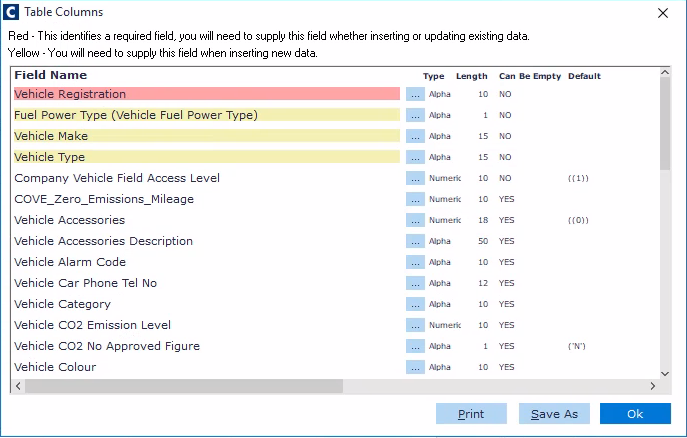
- Click the Table Columns button to see a list of fields in the table. This will display the mandatory fields that must be present in your import file.
- The fields highlighted in red are essential for any data import, and the fields highlighted in yellow are required when inserting new records (or new stack rows). If you are updating existing data these fields are not essential.
- In general, when importing data, if an existing record can be identified for update, then it will be updated. If an existing record cannot be identified, then an attempt will be made to insert a new record.
(click to expand)
- Check the Header Line Present checkbox. This displays the Source columns as per the selected import file.
- Click the ellipsis icon (...) to locate and open your .csv file.
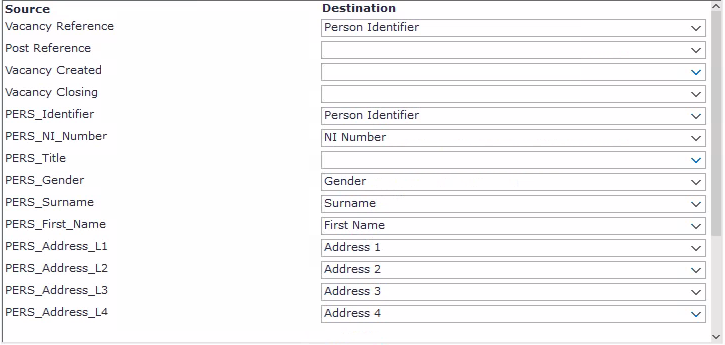
- Use the dropdown boxes next to each item under Source to select the correct field for the data to populate:
(click to expand)
- Click Next.
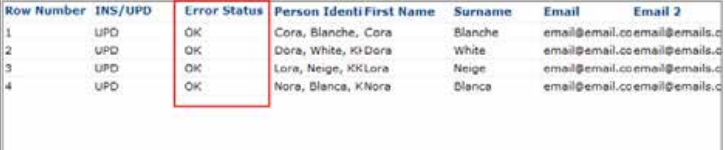
- If you have included all the mandatory fields for creating new records, click “Import”. The status for each row of your .csv file will be displayed and a message will be displayed confirming how many rows have been updated / inserted.
(click to expand)
- Click OK, then continue to save the mapping or save the data.
Exceptions and errors
When you click Next in the File Import window, if you have not included all the fields that are mandatory for creating new records, a warning will appear:
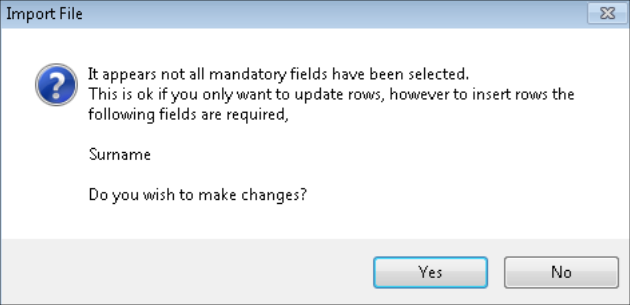
This does not necessarily mean you've made a mistake.
- If you're importing data to existing records only, click No and continue.
- If you want to create new records or stack rows from the imported data, click Yes to make changes, and make sure you have the correct columns mapped, or add the required data to your import file
If you click No, the data in your import file is shown:

Note the column marked INS/UPD (Insert / Update) indicates whether a row was inserted (a brand-new record or stack row), or updated (changing an existing record or stack row).
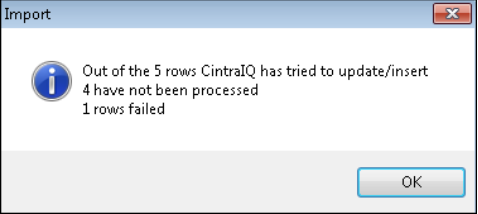
If there is a problem, the message tells you how many rows have been successfully imported, and how many failed. The "Error Status" is useful to help identify the problem.
Within your data, you may need to expand the Error Status column to view the problem.

In the example above, the conflict lies with the alternative email address.
If you try to import data that depends on other data already existing in Cintra iQ (e.g. import a new Employee record without there being a corresponding Person record), a message will appear during the import process.
Error threshold and rerunning the import
By default, the Error Threshold on the Import File screen is normally set to 1. This means that the import will stop after one error is encountered. At this point, any data imported before the error row was encountered will remain imported, and the rest of the rows will remain unprocessed.
If you encounter an error and you need to amend your file and re-run the import, any rows that were successfully inserted in the first attempt, will simply be updated in the second and subsequent attempts, because they already exist.
If you have a big file to import and are expecting some rejections, you may want to increase the error threshold, so that the majority of your file can be imported, and you can deal with any errors manually.
The error encountered for each row of your file, will be reported in the Error Status box.
Was this article helpful?
That’s Great!
Thank you for your feedback
Sorry! We couldn't be helpful
Thank you for your feedback
Feedback sent
We appreciate your effort and will try to fix the article