If you often use the same set of reports for a payroll each payroll period, you can add them to a report pack and share it with your colleagues, who will be able to download and view all the reports within a single spreadsheet.
TABLE OF CONTENTS
- Viewing / exporting a report pack
- Customisation options
- Create a report pack
- Edit / delete a report pack
Viewing / exporting a report pack
You can view report packs for an individual payroll or from the main Reports area.
To view report packs for any payroll
- Click Reports in the side menu.
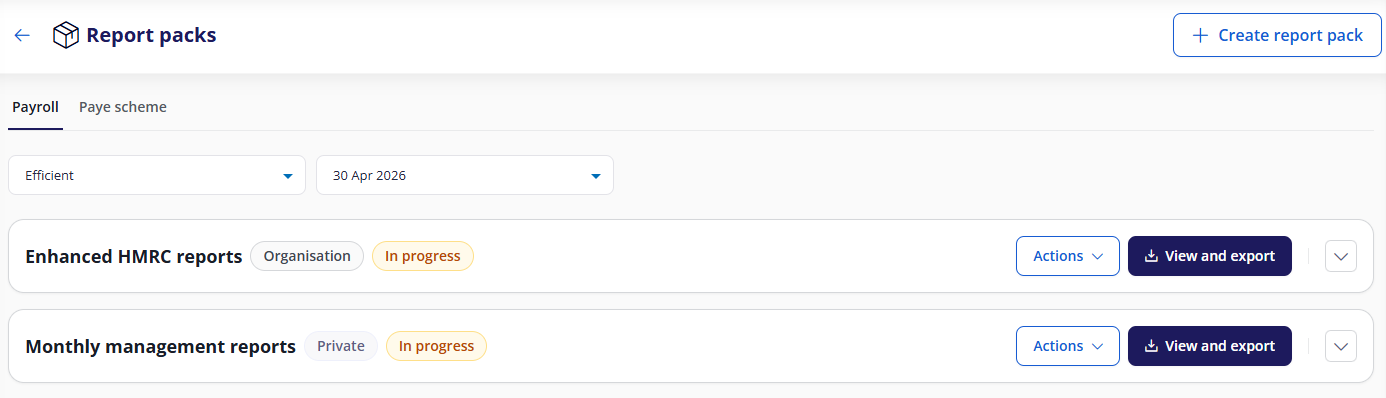
- Click Report packs. A list of report packs is displayed, sorted into Payroll and PAYE scheme tabs.
- PAYE scheme packs contain Apprenticeship Levy and/or P32 reports. These reports are only available at a Reports level, not in an individual payroll.
- The drop-down lists let you change which payroll and period you are viewing.
To view report packs from within a payroll
- Open any payroll, then click the Published Reports tab.
- A list of report packs available for that payroll are listed.
Report pack information
- Each pack has a label to show whether it is private to you, or whether it has been shared across your organisation or created by your bureau.
- Each pack displays the current status (e.g. in progress, approved) of the selected payroll and period.
- Click the name of any report pack to expand and view its constituent reports.
- Either click a report to open it, or click the pack's View and export button to view all its constituent reports.
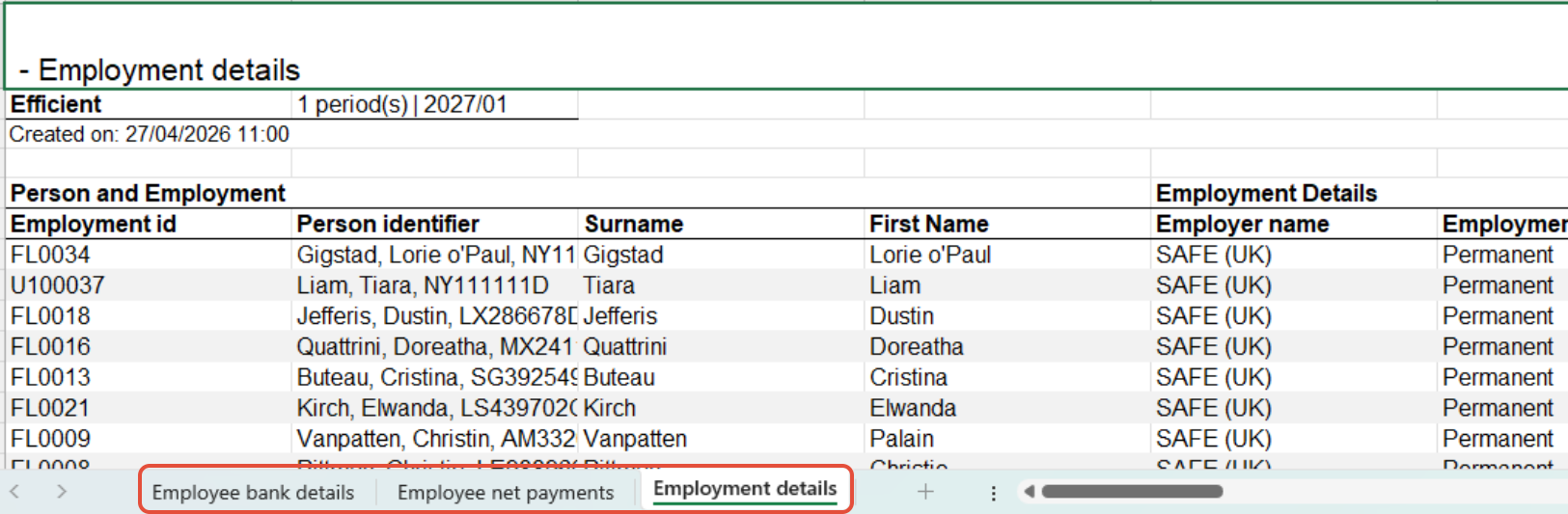
- To download the report, click Export all reports.
- You can then open the .xlsx report in any spreadsheet application. Each report will be shown in a separate tab.
Customisation options
The full range of report customisation options is not available when viewing a report within a report pack. However, for each report, you can:
- Move and resize columns
- Filter the list of values by clicking the filter icon:

- Sort columns, aggregate values, group by a column, or select columns by clicking the ellipsis menu

Please note the customisation options available can vary, depending on which report you are viewing. For more information, see Report customisation.
Create a report pack
- You can create report packs in two places:
- From the Bureau tab, click Configuration in the Settings side menu, then click Reports packs.
- OR from the Payroll tab, click Reports, then Report packs.
- Click Create report pack.
- Enter a descriptive name for your report, especially if you are going to be sharing it with others.
- Click the +icon beside each report you want to add to your pack.
- If you add the Apprenticeship Levy report or any P32 report, you won't be add any other types of report to the pack, as this they will become a PAYE report pack.
- There is a toggle at the bottom of the list of reports, there is Share with Bureau / Publish to organisationtoggle.
- Toggling on Share with Bureau will allow all organisations to view the report pack in their payrolls
- Toggling on Publish to organisation will allow all users to view and export the reports in the pack.
- Click Save.
Edit / delete a report pack
You can edit or delete any report pack you have created. To do this:
- From the Bureau tab, click Configuration in the Settings side menu, then click Reports packs.
- OR from the Payroll tab, click Reports, then Report packs.
- From the Actions menu, select Edit or Delete.
Was this article helpful?
That’s Great!
Thank you for your feedback
Sorry! We couldn't be helpful
Thank you for your feedback
Feedback sent
We appreciate your effort and will try to fix the article