Within the Payroll Workflow window you can:
- Set up Groups of Payrolls
- Set up Group Actions or Payroll Actions
To access the Payroll Workflow window, go to Payroll> Payroll Tools> Payroll Workflow
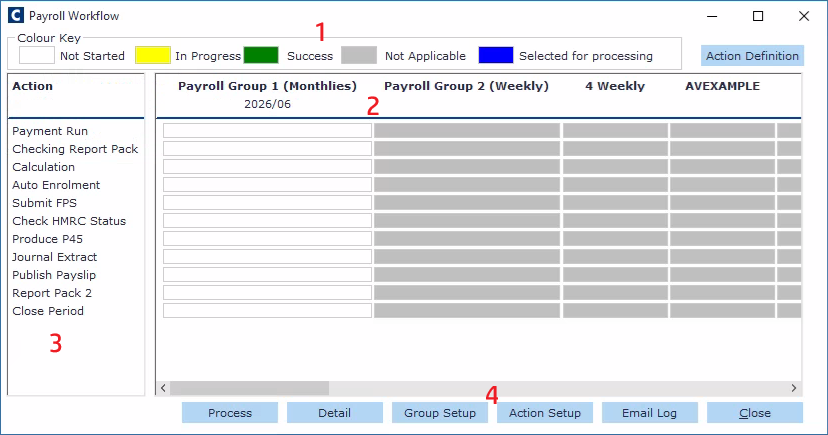
The Payroll Workflow screen has the following sections:
1. Colour key
- When you first open this screen, all actions will be "Grey: Not Applicable" as you have yet to set up any of the actions.
- Once you have set up your actions each of these corresponding action fields displays a colour to show its current stage:
- White: Not Started
- Yellow: In Progress
- Grey: Not Applicable
- Blue: Selected for processing.
Once you have set up your chosen actions as either Group Actions or Payroll Actions, the corresponding action fields will be shown as "not started" instead of "not applicable".
2. Main window
Within the main window, running across the top is the full list of ALL your payroll groups and any individual payrolls that have not been placed in a group (use the horizontal scroll bar to view all of them).
If you have multiple payrolls in a group which belong to different payroll periods then the earliest payroll period will be displayed.
3. Payroll actions
On the left hand side of the window are all the available payroll actions that can be applied to groups.
4. Buttons
At the bottom of the screen, you can:
- Process: Process the selected actions. The Process Run log appears and as each payroll is actioned, it appears in this log with a start and end time. If any payroll should fail, a message will appear against it.
- Detail: Run an action for selected payrolls and view the payroll name, any significant changes, the run’s success, errors, and the run’s start and end dates.
- Group setup: Create or modify a payroll group. You can add or remove payrolls from a group.
- Action setup: Set up an action for an individual payroll or for a group as a whole
- Email log: View all previous emails that have been sent out.
- Close the window
You can also rename and reorder actions by clicking Action Definition at the top right of the screen. See How do I rename and reorder payroll workflow actions?
Was this article helpful?
That’s Great!
Thank you for your feedback
Sorry! We couldn't be helpful
Thank you for your feedback
Feedback sent
We appreciate your effort and will try to fix the article