Once you have created an employer, you are ready to add a PAYE scheme and assign a payroll to it.
To create a PAYE scheme
- Within Cintra iQ, go to Payroll> Payroll Setup> Employer Setup.
- Select an employer, then click Open.
- Click the PAYE & Payrolls tab.
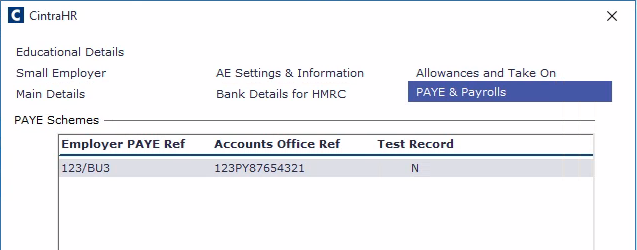
Employer PAYE & Payrolls tab
- Within the PAYE Schemes section, any existing schemes will be displayed (double-click to edit). To create a new scheme, right-click and select New.
- Within the New PAYE scheme window, you must enter the following information:
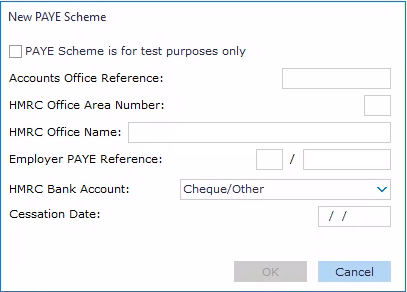
New PAYE scheme screen
- PAYE Scheme is for test purposes only: Tick this box if you do NOT want to send this scheme's details to HMRC.
- HMRC Accounts Office Reference: Enter the 13 character reference number. The 4th character should be either P or X.
- HMRC Office Area Number: This field is filled in automatically, based on the reference number above.
- HMRC Office Name: Enter the name, if known.
- Employer PAYE reference: The first section is populated with the HMRC Office Area Number. Enter the remaining characters into the second section.
- HMRC Bank Account: Select the appropriate HMRC office or Cheque/Other.
- For more information, see What are the employer details?
- Click OK to save.
Once you have created a PAYE Scheme, you can attach payroll to it and choose which users will have access.
To create and assign a new payroll
- Within Cintra iQ, go to Payroll> Payroll Setup> Employer Setup.
- Select an employer, then click Open.
- Click the PAYE & Payrolls tab.
- Select a PAYE Scheme.
- Right-click: New in the Payrolls associated with the selected PAYE Scheme pane. The New Payroll form appears.
- Enter the Payroll Name and its details.
- Select the desired users who will have access to the Payroll.
- Click the Next button. A message appears stating: If the new employee records for this payroll are to be restricted from particular users within the navigator, please ensure the security profiles cater for this.
Cintra HR& Payroll Services is not responsible for any data breach resulting from incorrect security settings within CintraIQ.
For more information about setting up user security, see What is Security with Cintra iQ? - Click the OK button. The Payroll window appears.
- Go through the tabs and enter the necessary information.
- Click the OK button to save. The payroll is now associated to the scheme.

Was this article helpful?
That’s Great!
Thank you for your feedback
Sorry! We couldn't be helpful
Thank you for your feedback
Feedback sent
We appreciate your effort and will try to fix the article