TABLE OF CONTENTS
- What are calendar events?
- Accessing the Employment Calendar
- Creating a calendar event
- Amending a calendar event
What are calendar events?
This calendar is an important tool for managing employee records, as it tracks various types of absences. You can use it to record events like sickness, maternity / paternity, holidays, and adoption leave.
Before you can record calendar events, you need to create categories for them. These are recorded as attendance types within the lookup tables. To find out more, see How do I add absence categories to the lookup tables?
Accessing the Employment Calendar
- Within the Folders section on the left, select Employment Records.
- In the Navigator in the centre, select an employee record.
- In the list of Forms on the right, select Calendar. The Employment Calendar appears.
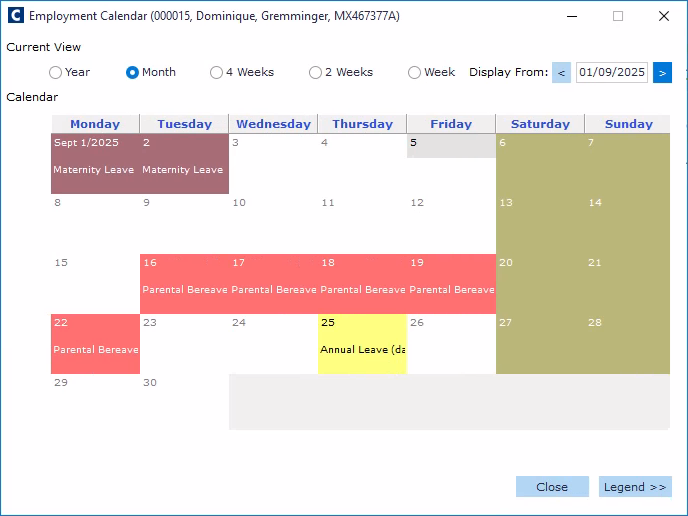
(click to expand the Employment Calendar screen)
Creating a calendar event
- Within the Employee Calendar, select the date(s) that the employee is absent.
- You can select a range of dates by selecting the first date in the event, holding down the SHIFT key on your keyboard, then selecting the last date.
- Right-click within the date/date range, then click New Calendar Event.
- Within the Select Attendance Category drop-down list appears, select an attendance category (i.e. event type).
- Click the Next button. The relevant absence form appears.
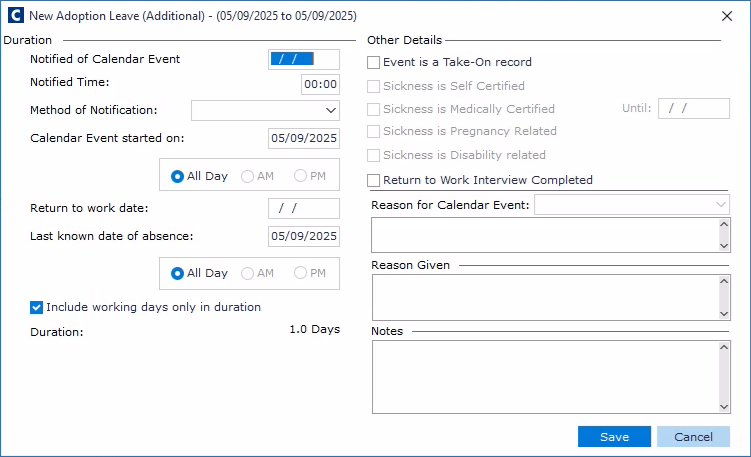
(click to expand the absence event screen)
- Enter the Notified of Calendar Event and Return to Work date, if known.
- Enter the Last known date of absence.
- Include working days only in duration, if necessary.
- Continue to fill out the Other Details where necessary.
- Click Save.
Amending a calendar event
- Within the Employee Calendar, locate the absence entry you would like to amend.
- You can enter absence details for a previous period by scrolling back to the relevant month using the Display From arrows. Absence payments for a previous period are processed in the current payroll period.
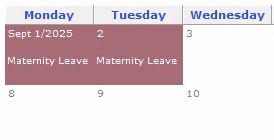
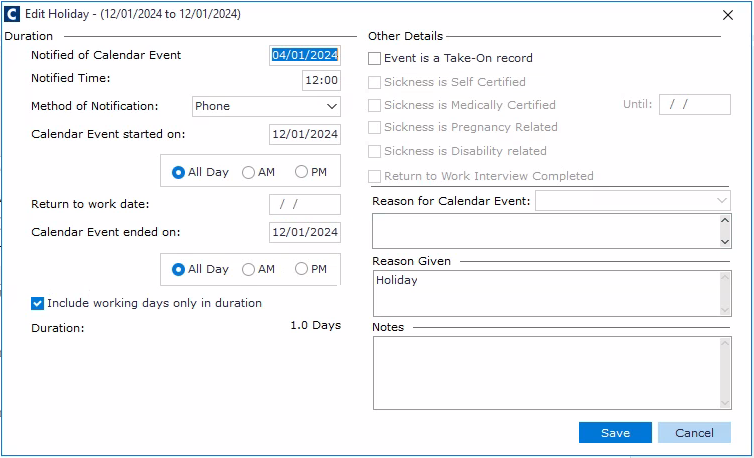
- Double-click on the entry to open the record. You can then amend the Start Date, Last Known Date of Absence, Return to Work Date etc.
Was this article helpful?
That’s Great!
Thank you for your feedback
Sorry! We couldn't be helpful
Thank you for your feedback
Feedback sent
We appreciate your effort and will try to fix the article