- Establish Parental Leave and Pay for the mother within Cintra iQ.
- Establish Parental Leave and Pay for the partner within Cintra iQ.
- Establish Parental Leave and Pay for the adopter within Cintra iQ.
TABLE OF CONTENTS
- 1 - About Shared Parental Leave and Pay
- 2 - Background Information
- Shared Parental Leave (FAQ)
- How does an employee qualify for ShPL?
- How can the employee's partner be eligible for ShPL?
- What is the Main Carer's ShPL entitlement?
- When does the Main Carer start their ShPL?
- What is a Binding Notice?
- How much notice does a Main Carer have to give?
- When can a Partner start ShPL?
- How does the employee prepare for taking ShPL and ShPP?
- What other information can I ask from employee in preparation for taking ShPL or ShPP?
- How can an employee cancel their decision to end their maternity or adoption leave early?
- How many SPLIT and KIT days is an employee and their partner entitled to?
- How many blocks of leave is an employee entitled to?
- Shared Parental Pay (FAQ)
- Shared Parental Leave and Shared Parental Pay within IQ (FAQ)
- How do I create a ShLP record if the employee is the Mother (Main Carer)?
- How do I create a ShPL record if my employee is the Partner ?
- How do I enter a ShPL calendar event?
- How do I view ShPL?
- How do I modify the number of ShPL weeks that are to be paid?
- How do I check the ShPL payment details?
- How do I check the weekly earnings for either the employee's SMP, SPP or SAP?
- How do I assign a parental leave KIT day for the Mother?
- How do I assign a parental leave SPLIT day for the Partner?
- Where do I see the details of the employee's ShPP Pay?
- How do I delete a ShPL week?
- How do I delete a ShPL period?
- Where do I see the employee's ShPL?
- Shared Parental Leave (FAQ)
- 3 - Establishing Shared Parental Leave for Employee (Mother)
- 4 - Establishing Shared Parental Leave for Employee (Partner)
- Establishing Shared Parental Leave for the Employee (Adopter)
- 6 - More information
1 - About Shared Parental Leave and Pay
Working parents of a baby due or an adoptive child placed on or after 5 April 2015 may be eligible for Shared Parental Leave (ShPL) and/or Shared Parental Pay (ShPP).
Under ShPL and ShPP, Main Carers, also know as primary carers, (mothers/adopters) can choose to end their maternity/adoption leave and pay, early (at any point from two weeks after the birth/placement - four weeks if they are factory workers), and share their untaken pay and leave with their partner.
ShPL and ShPP can be stopped and started and parents can be off at the same time, if they wish. Parents will be able to take their leave in phases, for example 20 weeks for the mother/adopter, followed by 20 weeks for the father/partner, followed by 10 weeks for the mother/adopter. So it may be the case that statutory parental pay is paid over one or two discontinuous periods. This is at the employer's discretion.
The ShPL and ShPP functionality enables employers to track an employee's shared parental leave and shared parental pay.
2 - Background Information
This section explains the background of Shared Parental Leave (ShPL) and Shared Parental Pay (ShPP).It is divided into the following sections:
- Shared Parental Leave (FAQ) This section gives an overview of ShPL . For more information, see HMRC.
- Shared Parental Pay (FAQ) This section gives an overview of ShPP. For more information, see HMRC.
- Shared Parental Leave and Shared Parental Pay within Cintra iQ (FAQ) This section answers questions you may have that pertain to the ShPL and ShPP functionality within Cintra iQ.
Shared Parental Leave (FAQ)
How does an employee qualify for ShPL?
The Main Carer must be eligible for either
- Maternity leave or pay
- Maternity Allowance (Job Centre)
- Adoption leave or pay
AND
- Live in England, Scotland or Wales.
AND
- The employee must have worked for your company continuously for at least 26 weeks by the end of the 15th week before the due date (or date they are matched with their adopted child) and still be employed by the company while they take ShPL
How can the employee's partner be eligible for ShPL?
The partner is eligible for ShPL if during the 66 weeks before the bay is due, the following has occurred:
- They worked for at least 26 weeks (the weeks do not need to be consecutive).
- They earned at least £30 a week on average in 13 of the 66 weeks.
What is the Main Carer's ShPL entitlement?
As long as an employee is eligible and they or their partner end their maternity/adoption leave (or Maternity Allowance) early, they are entitled to:
- take the rest of the 52 weeks of leave (up to a maximum of 50 weeks) as ShPL.
- take the rest of the 39 weeks of pay (up to a maximum of 37 weeks) as ShPP.
When does the Main Carer start their ShPL?
The Main Carer can start their ShPL once they have performed one of the following:
- Ended their maternity/adoption leave by returning to work
- Notified you in advance of the date in which they’ll end their maternity/adoption leave.
- Ended their maternity pay or Maternity Allowance (if they’re not entitled to maternity leave, e.g. they’re an agency worker or self-employed).
What is a Binding Notice?
A binding notice is when an employee has given advance notice of at least eight weeks of
when she is going to end her leave (or pay if they are not entitled to leave.).
How much notice does a Main Carer have to give?
The employee must give at least eight week's notice for any type of leave they wish to take.
When can a Partner start ShPL?
As long as the Main Carer has given a binding notice to you stating when the maternity/adoption leave ends, the partner can go on ShPL as soon as the baby is born or placed, while the Main Carer is still on leave.
How does the employee prepare for taking ShPL and ShPP?
An employee must give you in writing, notice of their entitlement. This includes the following:
- Their partner’s name.
- Maternity/adoption leave start and end dates.
- How much they and their partner intend to take.
- That they’re sharing childcare responsibility with their partner.
- A signed declaration from the partner stating:
- their name, address and National Insurance number.
- that they qualify as well as the employee to take ShPL and ShPP.
- that they agree to the other person taking ShPL and ShPP.
What other information can I ask from employee in preparation for taking ShPL or ShPP?
Although not mandatory, you have 14 days once you have received the employee's notice of entitlement, to ask for the following:
- The name and address of their partner’s employer
- Adoption placement evidence
How can an employee cancel their decision to end their maternity or adoption leave early?
The main carer can change their decision if the following occurs:
- The planned end date hasn’t passed
- They haven’t already returned to work
And either the following has occurred:
- The employee finds out during their eight week notice that neither they nor their partner are eligible for ShPL or ShPP.
- The Main Carer’s partner has died.
- The mother tells her employer less than 6 weeks after the birth (and she gave notice before the birth).
How many SPLIT and KIT days is an employee and their partner entitled to?
An employee and their partner are entitled to work up to 20 Shared Parental Leave In Touch
(SPLIT) days during ShPL.
The Main Carer is also eligible for 10 Keeping In Touch (KIT) days, for those who are on
maternity/adoption leave.
How many blocks of leave is an employee entitled to?
An employee has the right to book three separate blocks of leave within the ShPL entitlement. They can take the leave at different times from their partner or at the same time.
Shared Parental Pay (FAQ)
Who can receive ShPP?
In order to receive ShPP, an employee must qualify for either of the following:
- Statutory Maternity Pay or Statutory Adoption Pay.
AND
The employee must have worked for your company continuously for at least 26 weeks by the end of the 15th week before the due date (or date they are matched with their adopted child) and still be employed by the company while they take ShPL.
OR
- Statutory Paternity Pay and have a partner who qualifies for Statutory Maternity Pay or Maternity Allowance or Statutory Adoption Pay.
How much is the ShPP?
An employee is entitled to £139.58 a week from 5 April 2015 or 90% of their average weekly earnings, depending on which is lower.
How much notice must a Main Carer give to end their maternity/adoption pay (or Maternity Allowance)?
The Main Carer must give you the minimum of eight weeks notice (or Job Centre Plus if they get Maternity Allowance)
Shared Parental Leave and Shared Parental Pay within IQ (FAQ)
How do I create a ShLP record if the employee is the Mother (Main Carer)?
Before you begin, you must have a Statutory Maternity Pay (SMP) record available to link to a ShPL record. This record forms the basis from which the ShPL record is created.
- Ensure the SMP record is updated with the necessary information.
- Create the ShPL record.
- Link the SMP record to the ShPL record.
- Enter the ShPL weeks.
How do I create a ShPL record if my employee is the Partner ?
- Update the Statutory Paternity Pay (SPP) record, if the record is available.
- Create the ShPL record.
- Link the SPP record to the ShPL record, if the SPP record is available.
- If the SPP record is not available, you must enter the information into the ShPL record manually.
- Enter the ShPL weeks.
How do I enter a ShPL calendar event?
Normally you create absence events through the Calendar, but ShPL absences are created through the Calendar of Leave tab in the Shared Parental Leave Record window, so that you can create more than one block of ShPL at a time.
How do I view ShPL?
Once a ShPL event is created, you can see it as an entry in the Calendar.
How do I modify the number of ShPL weeks that are to be paid?
- Return to the Calendar of Leave tab of the Shared Parental Leave Record window
- Click the ShPL Weeks button. The Shared Parental Leave Weeks window appears.
- Uncheck any of the weeks that are to be paid..
- Click OK. The Weeks Booked Main Carer/Partner: Payable field is updated.
How do I check the ShPL payment details?
Return to the Calendar of Leave tab of the Shared Parental Leave Record window and click the Payment Details button. The ShPL Payment Details window appears.
How do I check the weekly earnings for either the employee's SMP, SPP or SAP?
Return to the Calendar of Leave tab of the Shared Parental Leave Record window and click the Relevant Earnings button. The Relevant Earnings (System Calculated) window appears.
How do I assign a parental leave KIT day for the Mother?
For more information, see Assigning a KIT Day.
How do I assign a parental leave SPLIT day for the Partner?
For more information, see Assigning a SPLIT Day.
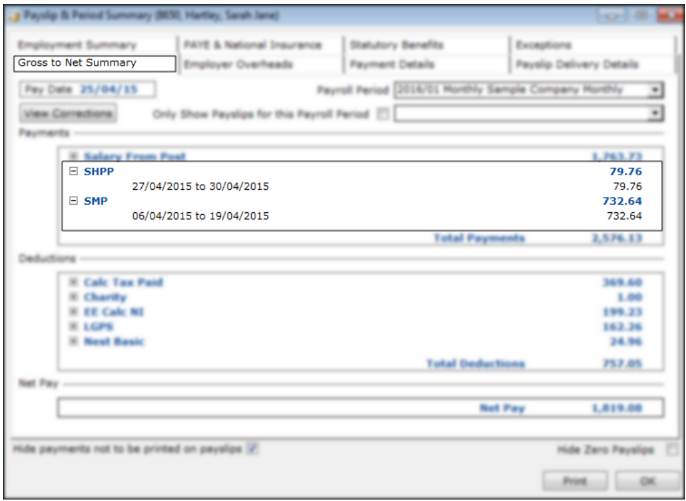
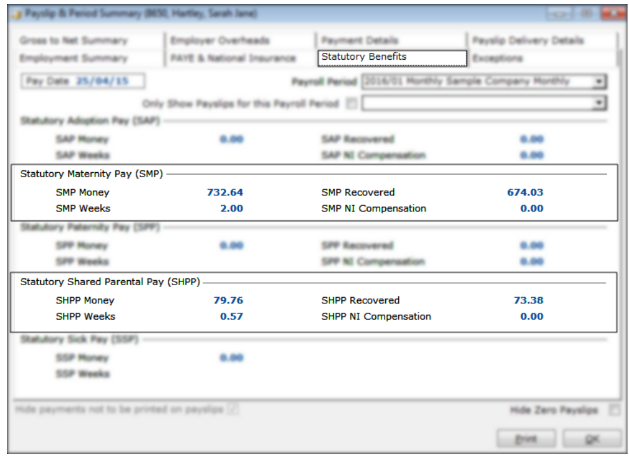
Where do I see the details of the employee's ShPP Pay?
You can see the details in the following locations:
- Return to the Shared Parental Leave tab in the Statutory Payments window. It now reflects the details that were created in the Shared Parental Leave Record window.
- Open the Payslip's Payslip & Period Summarywindow and the SMP/SPP/SAPand ShPP payments appear on the following tabs:
- Gross to Net Summary
- Statutory Benefits
How do I delete a ShPL week?
- Return to the Calendar of Leave tab of the Shared Parental Leave Record window.
- Double-click on the desired week. The Shared Parental Leave Dates window appears.
- Modify the Absent To: date.
- Click the OK button. A message appears stating: You have entered a new absence to date. If you continue, this will recalculate the Shared Parental Weeks. Do you wish to continue?
- Click the Yes button. The record for that week is deleted from the Shared Parental Leave Dates window.
- Click the OK button. The modification is saved. The Calendar of Leave tab is updated.
How do I delete a ShPL period?
- Return to the Calendar of Leave tab.
- Right-click on the ShPL period and select Delete ShPL Leave Period. The period of leave is deleted except for the start date,
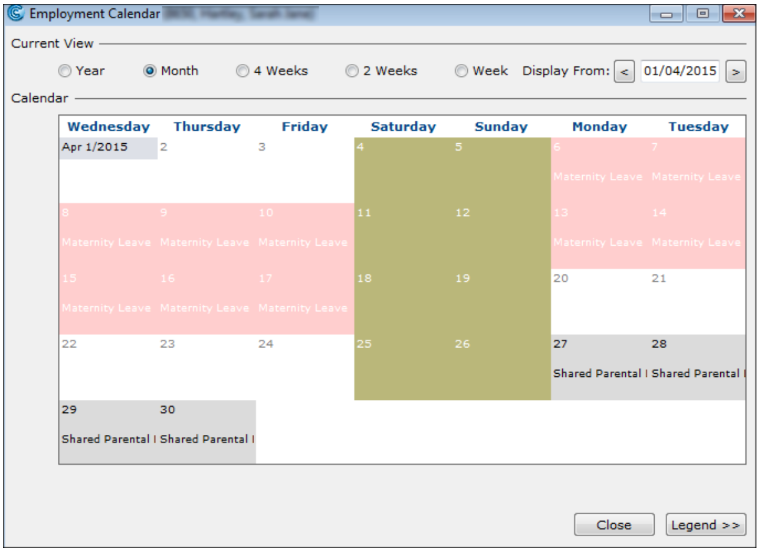
Where do I see the employee's ShPL?
Return to the Calendar. The view now reflects both the Maternity/Paternity/Adoption Leave and ShPL taken by the employee.
3 - Establishing Shared Parental Leave for Employee (Mother)
You must have a Statutory Maternity Pay (SMP) record available to link to a ShPL record. This is so that you can see at a glance how much leave the employee is taking and calculate their pay accordingly.
In the case where the mother is the Main Carer, the maternity record forms the basis from which to create a ShPL record.
Updating the SMP record
Ensure the SMP record is updated with the necessary information pertaining to ShPL.
- From Forms, select Statutory Payments. The Statutory Payments window appears.
- Select the Statutory Maternity Pay tab. The previously created SMP record is displayed.
- Double-click the record. The SMP Claim window appears.
- You can also right-click and select Open from the menu to access the SMP
Claim window.
- You can also right-click and select Open from the menu to access the SMP
In the Maternity Leave Dates & Kit Days tab, enter the required dates.
Click the OK button. The information is saved. You are ready to create the ShPL
record.
Creating the ShPL record
Normally you create absence events through the Calendar, but ShPL absences are created through the Calendar of Leave tab in the Shared Parental Leave Record window, so that you can create more than one block of ShPL at a time.
- In the Statutory Payments window, select the Shared Parental Leave tab.
- Right-click in the tab and select New. The Shared Parental Leave window appears.
- Choose Birth as the Leave Type.
- Ensure the Employee is the Main Carer check box is checked as the employee is the Mother, therefore Main Carer.
- If the Employee is the Main Carer check box is left unchecked, a window entitled Shared Parental Leave Record(Birth) (Employee is the Partner) appears instead. For more information, see Establishing Shared Parental Leave for the Employee (Partner).
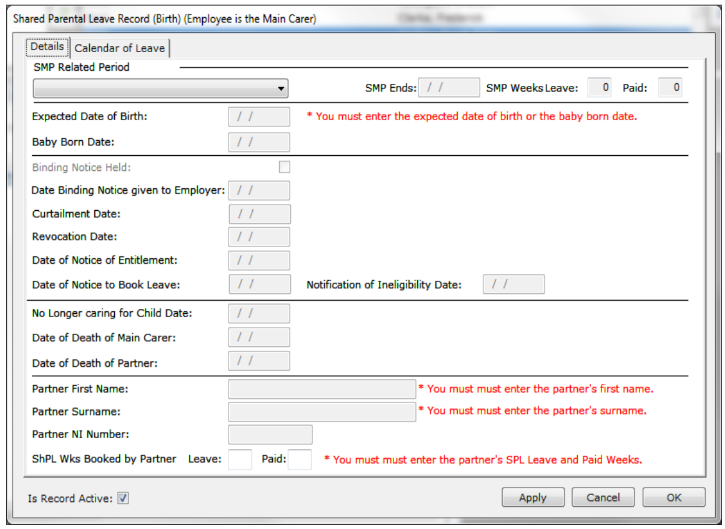
- Click OK. The Shared Parental Leave Record window appears.
Linking the SMP record to the ShPL record
The SMP information forms the basis of the ShPL record.
- In the Details tab, select the SMP Related Period from the drop down list. The SMP Ends date and SMP Weeks Leave and Paidentitlements automatically appear.
- Because the SMP record is linked, the SMP related dates and entitlements are automatically transferred to the Shared Parental Leave Record window.
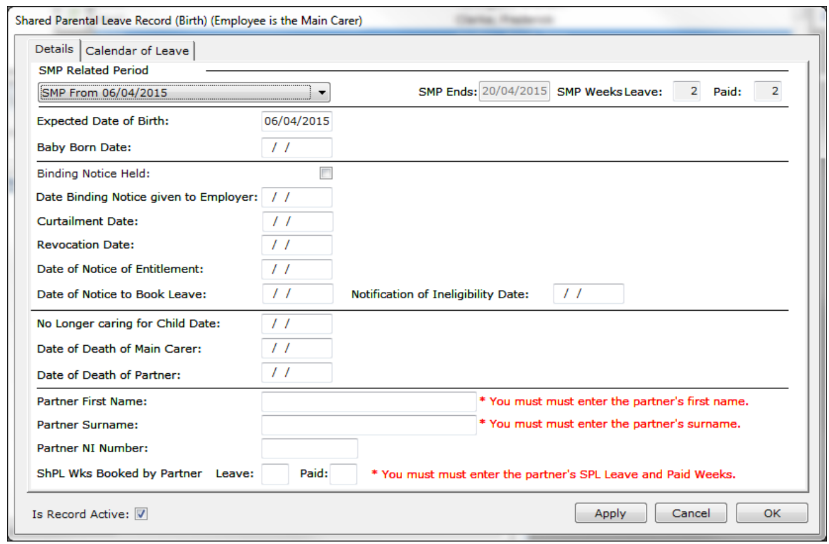
- Enter the following required fields:
- Entering a Curtailment Date ends the SMP record at that date.
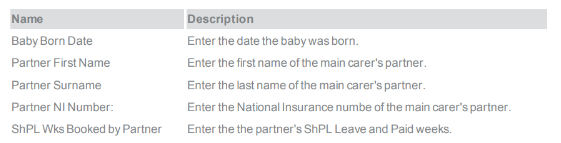 Click the Apply button. The Details tab is updated. Now you are ready to enter the ShPL weeks for the employee.
Entering the ShPL Weeks
This is where you enter what weeks the employee is going to be off.
- In the Shared Parental Leave Record window, select the Calendar of Leave tab. The date on which the baby is expected to be born is highlighted.

- Highlight the dates you wish to apply to the employee's leave.
- The calendar week must begin and end on a whole week, e.g. Monday to Sunday or Tuesday to Monday, otherwise a warning message appears stating: "The Shared Parental Period (x days) selected a part week. The Employee may lose leave and pay benefit. Do you wish to continue?"
- To select a block of dates, press Shift on your keyboard and click the start date and end date of the leave period. The period becomes highlighted.
- Right-click within the highlighted dates and select New ShPL period.
- In the Shared Parental Leave Dates window, check the To Be Paid box for each week to be paid.
- You can see how many weeks are available at the bottom of the window, which mirrors the number of Payable Weeks Available in the Calendar of Leave tab.
- Click the OK. The window is closed.
- Continue to book off the desired weeks until the employee's allocation is finished.
- You can book up to three blocks of shared parental leave within a Maternity/Adoption Leave entitlement, or more depending on the company's discretion.
4 - Establishing Shared Parental Leave for Employee (Partner)
In the case where the employee is the partner of the Main Carer, a Statutory Paternity Pay (SPP) record may be available and can be linked to the ShPL record. If no SPP record is available, you must manually enter the necessary information into the ShPL record.
Updating the SPP record
Ensure you've updated the SPP record before you can create the Shared Parental Leave record as this forms the basis from which to create the ShPL record.
- From Forms, select Statutory Payments. The Statutory Payments window appears.
- Select the Statutory Paternity Pay tab. The previously created SPP record is displayed.
- Double-click the record. The Ordinary Paternity Pay Claim window appears
- You can also right-click and select Open from the menu to access the Ordinary Paternity Pay Claim window.
In the Paternity Leave Dates tab, enter the required dates for Birth.
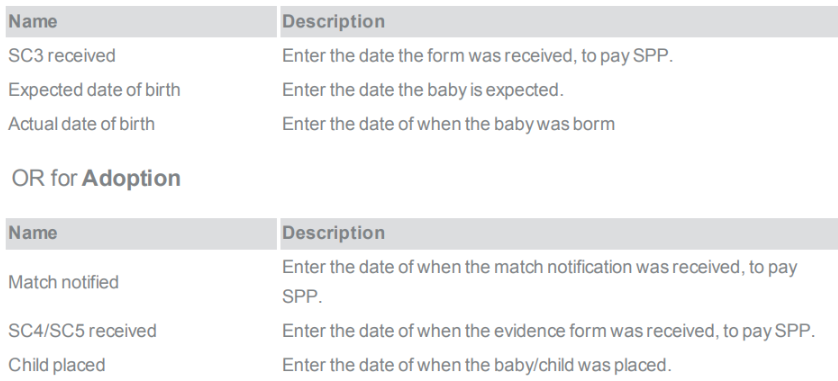
Click the OK button. The information is saved. You are ready to create the ShPL record.
Creating the ShPL record
Normally you create absence events through the Calendar, but ShPL absences are created through the Calendar of Leave tab in the Shared Parental Leave Record window, so that you can create more than one block of ShPL at a time.
- In the Statutory Payments window, select the Shared Parental Leave tab.
- Right-click in the tab's pane and select New. The Shared Parental Leave window appears.
- Choose the Type of leave as Birth or Adoption.
- Uncheck the Employee is the Main Carercheck box as the employee is not the Main Carer.
- If the Employee is the Main Carer check box is checked, a window entitled Shared Parental Leave record (Birth/Adoption) (Employee is the Main Carer) appears instead.
- Click the OK button. The Shared Parental Leave Record window appears.
OR for Adoption:
- The window is exactly the same except for the following fields which replace Expected Date of Birth and Baby Born Date.

Linking the SPP record to the ShPL record
The SPP information forms the basis of the ShPL record, if the record exists. Otherwise you must enter the information manually.
- In the Details tab, select the SPP Related Period from the drop down list. The information related to the SPP automatically appears.
- Note: Because the SPP record is linked, the SPP related dates and entitlements are automatically transferred to the Shared Parental Leave Record window.
- Enter the following required fields if not already filled
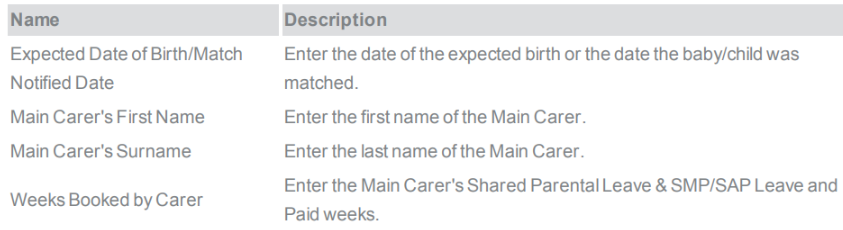
- Click the Apply button. The Details tab is updated. You are now ready to enter the ShPL weeks for the employee.
Entering the ShPL Weeks
This is where you enter what weeks the employee is going to be off.
- In the Shared Parental Leave Record window, select the Calendar of Leave tab. The date on which the baby is expected to be born is highlighted.
- Highlight the dates you wish to apply to the employee's leave.
- The calendar week must begin and end on a whole week, e.g. Monday to Sunday or Tuesday to Monday, otherwise a warning message appears stating: "The Shared Parental Period (x days) selected a part week. The Employee may lose leave and pay benefit. Do you wish to continue?"
- To select a block of dates, press Shift on your keyboard and click the start date and end date of the leave period. The period becomes highlighted.
- Right-click within the highlighted dates and select New ShPL period.
- In the Shared Parental Leave Dates window, check the To Be Paid box for each week to be paid.
- You can see how many weeks are available at the bottom of the window, which mirrors the number of Payable Weeks Available in the Calendar of Leave tab.
- Click the OK. The window is closed.
- Continue to book off the desired weeks until the employee's allocation is finished.
- You can book up to three blocks of shared parental leave within a Maternity/Adoption Leave entitlement, or more depending on the company's discretion.
Establishing Shared Parental Leave for the Employee (Adopter)
You must have a Statutory Adoption Pay (SAP) record available to link to a ShPL record. This is so that you can see at a glance how much leave the employee is taking and calculate their pay accordingly. In the case where the adopter is the Main Carer, the SAP record forms the basis in which to create a ShPL record.
5 - Updating the SAP record
Ensure the SAP record is updated with the necessary information pertaining to ShPL.
- From Forms, select Statutory Payments. The Statutory Payments window appears.
- Select the Statutory Adoption Pay tab. The previously created SAP record is displayed.
- Double-click the record (or right-click and select Open). The SAP Claim window appears.
- In the Adoption Leave Dates & KIT Days tab, enter the required dates.
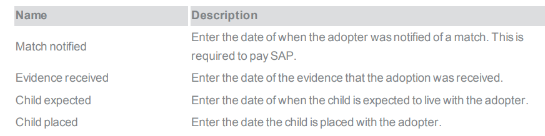
- Click OK to save. You are ready to create the ShPL record
Creating the ShPL record
Normally you create absence events through the Calendar, but ShPL absences are created through the Calendar of Leave tab in the Shared Parental Leave Record window, so that you can create more than one block of ShPL at a time.
- In the Statutory Payments window, select the Shared Parental Leave tab.
- Right-click in the tab's pane and select New. The Shared Parental Leave window appears.
- Choose Adoption as the Leave Type.
- Check the Employee is the Main Carer check box as the employee is the Main Adopter, therefore Main Carer.
- If the Employee is the Main Carer check box is unchecked, a window entitled Shared Parental Leave Record (Adoption) (Employee is the Partner) window appears instead. For more information, see Establishing Shared Parental Leave for the Employee (Partner).
- Click OK. The Shared Parental Leave Record window appears.
Linking the SAP record to the ShPL record
The SAP information forms the basis of the ShPL record.
- In the Details tab, select the SAP Related Period. The SAP Ends date and SAP Weeks Leave and Paid entitlements automatically appear.
- Because the SAP record is linked, the SAP related dates and entitlements are automatically transferred to the Shared Parental Leave Record window.
- Enter the following required fields:
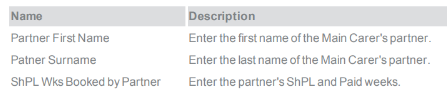
- Entering a Curtailment Date ends the SAP record at that date
- Click Apply. The Details tab is updated and you are ready to enter the ShPL weeks for the employee.
Entering the ShPL Weeks
This is where you enter what weeks the employee is going to be off.
- In the Shared Parental Leave Record window, select the Calendar of Leave tab. The date on which the baby is expected to be born is highlighted.
- Highlight the dates you wish to apply to the employee's leave.
- The calendar week must begin and end on a whole week, e.g. Monday to Sunday or Tuesday to Monday, otherwise a warning message appears stating: "The Shared Parental Period (x days) selected a part week. The Employee may lose leave and pay benefit. Do you wish to continue?"
- To select a block of dates, press Shift on your keyboard and click the start date and end date of the leave period. The period becomes highlighted.
- Right-click within the highlighted dates and select New ShPL period.
- In the Shared Parental Leave Dates window, check the To Be Paid box for each week to be paid.
- You can see how many weeks are available at the bottom of the window, which mirrors the number of Payable Weeks Available in the Calendar of Leave tab.
- Click the OK. The window is closed.
- Continue to book off the desired weeks until the employee's allocation is finished.
- You can book up to three blocks of shared parental leave within a Maternity/Adoption Leave entitlement, or more depending on the company's discretion.
6 - More information
Assigning a KIT Day
KIT days are Keep In Touch days. This is so the employee can keep up with their work while they are on maternity/adoption leave. For more information, see How do I mark a KIT day and process payment in the system?
Assigning a SPLIT Day
SPLIT days are Shared Parental Leave In Touch days, so the employee can keep up with their work while they are on shared parental leave.
- Return to the Shared Parental Leave tab in the Statutory Payments window.
- Right click on the ShPL record and select Open. The Shared Parental Leave Record window appears.
- Select the Calendar of Leave tab. The dates of the ShPL remain highlighted.
- Right-click the chosen date, then select Mark as SPLIT Day. The Available and Taken figures in the SPLIT Days section are automatically updated.
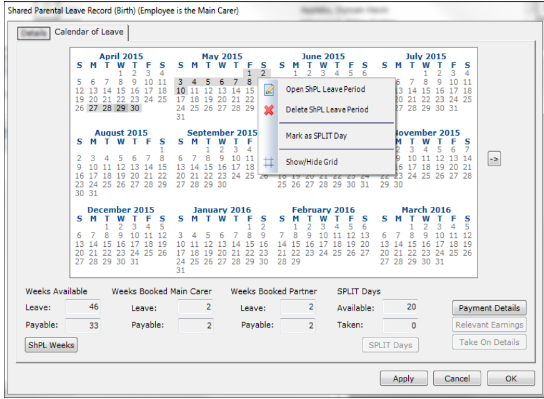
- Click the SPLIT Days button. The ShPL Keeping in Touch Days window appears. This displays the SPLIT day(s) the employee is back to work.
- Click OK, then OK again to save.
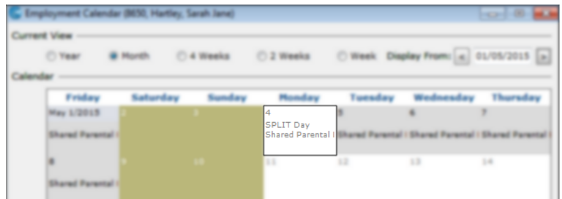
- Return to the Calendar in Forms.
- Navigate to the chosen date. The SPLIT day is now displayed.
Was this article helpful?
That’s Great!
Thank you for your feedback
Sorry! We couldn't be helpful
Thank you for your feedback
Feedback sent
We appreciate your effort and will try to fix the article