TABLE OF CONTENTS
- Statutory parental bereavement pay claim (SPBP)
- To create a bereavement leave calendar event
- Overview of Statutory Parental Bereavement Leave process
- Statutory Parental Bereavement Pay - Northern Ireland only
Statutory parental bereavement pay claim (SPBP)
A statutory parental bereavement pay claim is a request for government-regulated financial support from an employer to an employee who has lost a child. This support is part of the statutory parental bereavement leave and pay entitlements in places like the UK.
Employees who lose a child under 18 or experience a stillbirth after 24 weeks of pregnancy are eligible. They can take up to two weeks of paid leave, with the pay rate set by the government and based on a flat rate or a percentage of average earnings.
Employees must notify their employer of their loss and intent to take leave, often with specific timing requirements and may need to provide documentation, like a death certificate. The leave can be taken in one two-week block or two separate one-week blocks. This provision aims to offer financial and job security, allowing grieving employees time off without financial stress.
To create a bereavement leave calendar event
From 6 April 2020, under the Parental Bereavement Leave and Pay Regulations (Jack's Law), parents are entitled to two weeks statutory parental bereavement leave (SPBL) and pay (SPBP). For more information about Parental Bereavement Leave and Pay, see What is bereavement leave and pay?
- Navigate to the employee's Employment Calendar window.
- Go to Cintra iQ: Employment Record> Forms> Calendar
- Right-click in the start date of the bereavement (e.g. 1st January), then select New Calendar Event
- In the Select Attendance Category drop-down list, select Parental Bereavement Leave.
- Click Next. In the Statutory Bereavement Leave window, click New.
- Enter the date of the child's death, then click OK.
- Click the OK button. A New Parental Bereavement Leave record.
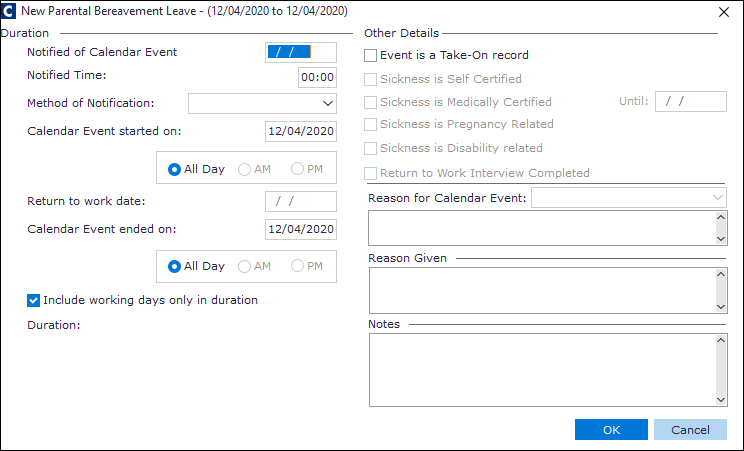
- Enter the Calendar Event ended on date, and any other relevant information.
- Click OK. The week(s) is recorded as taken and the event is created. You are ready to create the Statutory Parental Bereavement Pay claim.
Overview of Statutory Parental Bereavement Leave process
- Enter the Statutory Parental Bereavement Leave dates.
- Generate the Statutory Parental Bereavement Leave.
- View and edit the Statutory Parental Bereavement Leave details.
Creating a bereavement claim
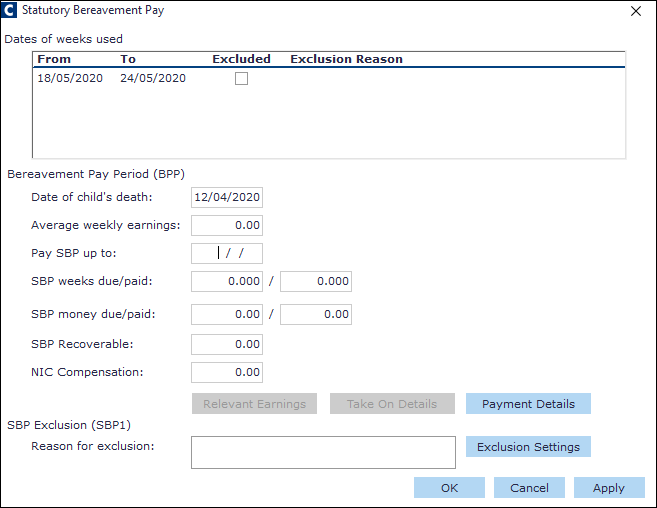
- Navigate to the employee's Statutory Bereavement Pay window.
- Go to Cintra iQ: Employment record> Forms> Parental Payments> Bereavement Pay tab.
- Right-click: Open the desired record in the Claims for Statutory Bereavement Pay (SBP) pane.
- Fill in the relevant fields.
- Click OK to save and close.
What is the relevant week and relevant period for average weekly (relevant) earnings?
How do I override the relevant earnings?
- Navigate to the employee's Statutory Bereavement Pay window.
- Go to Cintra iQ: Employment record> Forms> Parental Payments> Bereavement Pay tab
- Right-click: Open the desired record in the Claims for Statutory Bereavement Pay (SBP) pane.
- Click the Relevant Earnings button. The Relevant Earnings form appears.
- Enter the desired Average Weekly Earnings amount.
- Click the OK button. You are returned to the SBP form.
- Click the OK button.
- Perform a calc. The payment is recalculated and the record is updated in the Bereavement Pay tab.
How do I exclude an employee from statutory bereavement pay?
- Navigate to the employee's Statutory Bereavement Pay window.
- Go to Cintra iQ: Employment record> Forms> Parental Payments> Bereavement Pay tab
- Right-click: Open the desired record in the Claims for Statutory Bereavement Pay (SBP) pane.
- Click the Exclusion Settings button. The SBP Exclusion Reasons form appears.
- Select the desired reason.
- Click the OK button. The reason is displayed in the Dates of weeks used pane and the claim is excluded from payment.
How do I edit the statutory bereavement pay details?
- Navigate to the employee's Statutory Bereavement Pay window.
- Go to Cintra iQ: Employment record> Forms> Parental Payments> Bereavement Pay tab
- Right-click: Open the desired record in the Claims for Statutory Bereavement Pay (SBP) pane.
- Click the Payment Details button. The SSP Payment Details window appears.
- Select the desired record.
- Right-click: Open. The Edit Pay Up to Date popup appears.
- Change the Pay SBP up to date to the desired date.
- Click the OK button. The SBP Payment Details are updated accordingly.
Statutory Parental Bereavement Pay - Northern Ireland only
From 6th April 2026, SBPB will be paid to all employees in the event of bereavement, including miscarriage. The process described above is still valid for Northern Ireland employers, except for the following:
- When creating the calendar event, you must record the Attendance Category as Parental Bereavement NIRE Leave.
- You must record whether the death was a miscarriage.
- You must enter workplace postcode. This must be a Northern Ireland postcode.
- This additional information can be viewed / edited when entering the Statutory Bereavement Pay.
Was this article helpful?
That’s Great!
Thank you for your feedback
Sorry! We couldn't be helpful
Thank you for your feedback
Feedback sent
We appreciate your effort and will try to fix the article