Salary (Payment) grades are used by many organizations to help managers manage employees and establish appropriate pay increases for existing employees, while maintaining equity among the jobs in the company. Payment grades provide a structure for compensating employees and managing the payroll.
Grades within Cintra iQ can be either stand alone or linked via Pay Spines to actual payments. The Grade record contains the minimum and maximum limits of the selected Pay Spine, so that when applied, the employee will not have a pay increase once the limit is reached.
To create a record
- Navigate to the New Record: GRADEform.
- Go to Cintra iQ: Employer Settings> Grades> Navigator> Right-click: New.
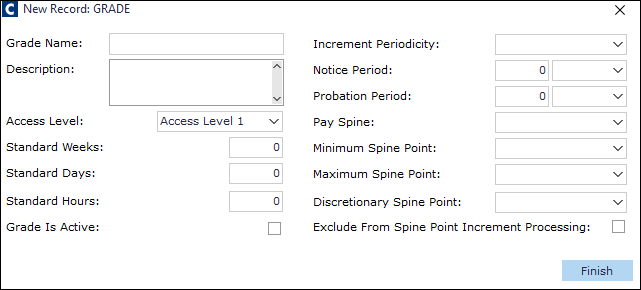
- Go to Cintra iQ: Employer Settings> Grades> Navigator> Right-click: New.
- Enter the Grade Name.
- Enter the Description.
- Select the desired Pay Spine.
- If the Grade is to be used with pay spines, you must select which pay spine the grade is associated with.
- Once you've selected a pay spine, you can then associated the grade with a single point or range on the pay spine by entering a Minimum and Maximum Spine Point.
- You can only view those points associated with that particular pay spine. To select just one point, enter that point into both the Minimum and Maximum fields.
- Discretionary Spine Point: This field is used as a break point within a range.
Example: If your range of points is 1-10 and employees have an automatic increment between 1 and 5 but must pass a test or meet certain criteria before moving further up, then point 6 could be entered as a discretionary spine point. The system would stop the incremental process at this point, and require you to manually move the employee through the remaining points of the range on their Grade History form.
- Exclude from Spine Point Increment Processing: If you select this option, you will need to manually change an employee's point in their Post History record. See How do I assign spine points to an employee posts
- Ensure the Grade Is Active option is selected.
- For more information about the fields, see What are grade records?
- Click the Finish button. The Grade record is created, and appears in the Navigator ready to be applied to a Post.
Was this article helpful?
That’s Great!
Thank you for your feedback
Sorry! We couldn't be helpful
Thank you for your feedback
Feedback sent
We appreciate your effort and will try to fix the article