Generally, the differences between a listing report and a payroll report are:
Listing report
- Multiple rows of data per employee.
- Filter applies to either records and/or data.
Payroll report
- Single row of data per employee per pay period.
- Filter applies to data only.
- Running the report.
- Lower right-hand corner> Reports> Reports window
- Menu bar> Definitions> Reporting> Reports> Reports window
TABLE OF CONTENTS
- Listing report: definition and example
- Payroll report: definition and example
- Generating/running a listing report
- Generating/running a payroll report
Listing report: definition and example
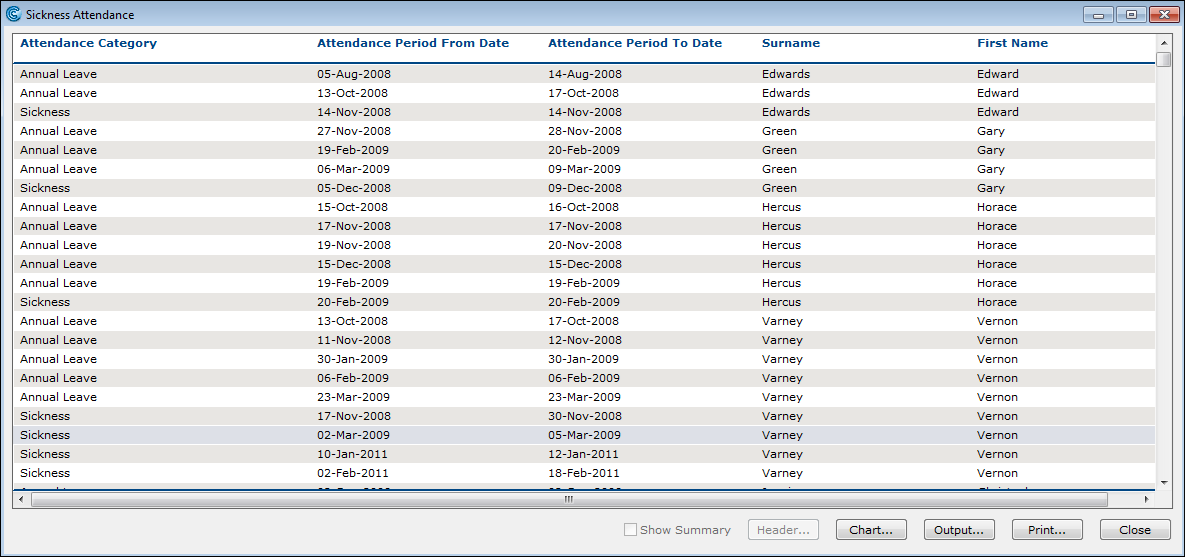
For example: to see a report on every period of sickness an employee has had, you can create a Listing report definition to show all periods of sickness belonging to that employment record.
(click to expand)
- Assign the data on which to base the report.
- Format individual columns (optional).
- Sort columns (optional).
- Format printing options (optional).
- Filter by record and data.
Payroll report: definition and example
Payroll reports let you report cash values on one or more pay periods. When you run a Payroll report, you can choose to only view data from specific payroll(s) and period(s).
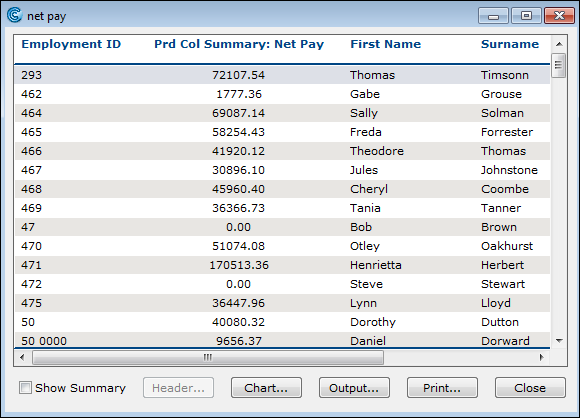
For example: if I wanted to see a report on the net pay of every employee within the company, I would create a Payroll report definition to show all periods of net pay belonging to that employment record.
(click to expand)
When creating the Payroll report definition, you can:
- Identify the payslip data on which to base the report. For more information, see the Payroll Listing tab.
- Format individual columns (optional). For more information, see the Field Details tab.
- Sort columns (optional).
- Format printing options (optional).
- Filter by data.
Generating/running a listing report
- Navigate to the Reports window.
- Highlight a Listing report.
- Click the Run button. The Filter Historic Records window appears.
- Select either the All, As At, or Between criteria to Filter Historic Records. The Filter details are displayed below the selection, for your review.
- Click the OK button. The report is generated.
- Continue to process the report's output.
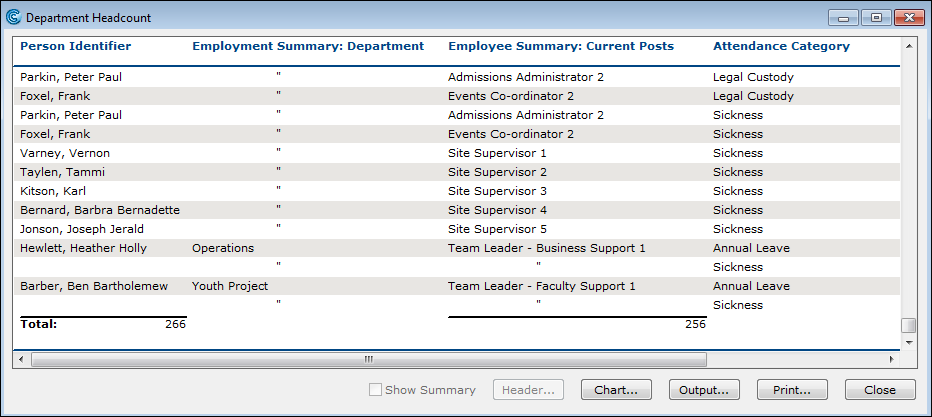
For example: I want to filter all the employees in the Department Headcount report who have a next of kin. Once the report is generated, I can go into the Contact Information form of the employee's personnel record to check the next of kin.
(click to expand)
To assign data
- Navigate to either the ListDefinition tab or Payroll Listing tab.
Go to iQ: Reports window> New button> Report Type: Listing Report> Create Listing Report Definition window OR Reports window> New button> Report Type: Payroll Report> Create Payroll Report Definition window - Enter the Titleof the report.
- The report cannot be saved unless you enter a title.
- Select the Category you wish to assign the report.
- If no category is selected, the report automatically appears in the Uncategorised category.
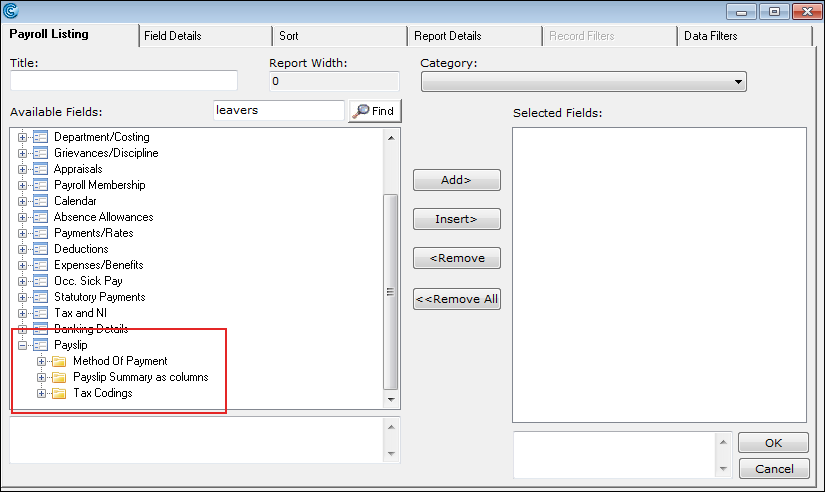
- Select the desired field in the Available Fields pane.
- The field selection for periodic information can be taken from the Payslip form. It allows you to report on exactly what was in the pay period and includes Starter and Leaver indicators.
 (click to expand)
- Click the Add > button. The field name appears in the Selected Fields pane.
- Repeat the process as many times as desired using either the Add> or Insert> buttons.
- Save and run the report.
To embed a record filter
- From the Available Filters pane in the Record Filters tab, select the desired filter.
- These filters were already created in the Filters module. For more information, see Filters.
- Add it to either the Include records belonging to All of: or Exclude records belonging to ANY of: panes.
- Click the OK button. The filter is now saved and embedded. It will activate when the report is run.
Generating/running a payroll report
- Navigate to the Reports window.
- Highlight a Payroll report.
- Click the Run button. The Payroll Report window appears showing a list of your company's payrolls
- Select one or more payrolls and a reporting period.
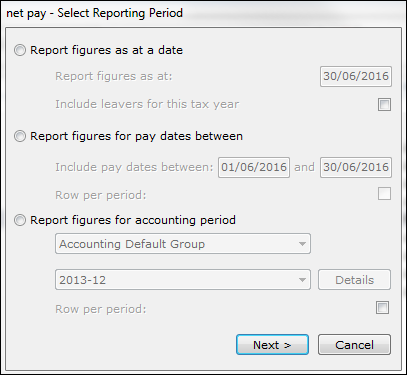
(click to expand)
- Report figures as at a date: Select this option to enter the relevant payroll pay period in which the date falls. It displays the current period values in the pay period.
- Report figures for pay dates between: By default, the period values are summed and year to date values display as at the last period in the range.
- Report figures for accounting periods: It works in the same way as Report figures for pay dates between except that Cintra iQ uses the payroll periods in the accounting period instead of the periods falling between the two selected dates.
- Click Next. Now you must confirm which payroll(s) you are reporting on, then
- Click Next. You can now select whether to report on all employees in the payroll, or on specific / multiple employees.
- Click Run to create the report.
Was this article helpful?
That’s Great!
Thank you for your feedback
Sorry! We couldn't be helpful
Thank you for your feedback
Feedback sent
We appreciate your effort and will try to fix the article