- The batches of Payroll Period Input data can be either directly entered into a template defined previously or imported from csv files that have been mapped to templates.
- Any records that have been generated from a batch can be amended via the batch or in payroll period input.
- Any records that are in a batch are posted to the employee records immediately once the batch is closed.
- All batches can be amended at any time prior to the period being closed.
Batch Input Window
To open the Batch Input window, click the Batch icon on the toolbar.
- Create a payroll batch file.
- Edit a payroll batch file.
- Delete a payroll batch file.
Batch Keys
- Select the Employment ID, NI Number or Person Identifier as Employee Identifier.
- Enter a Description for the New Batch data.
- Select the desired Batch Pay for Advanced Holiday Weeks, if necessary.
Manual Entry Input Types
Within the Import Data from File section, you can import data either as a standard import map or template import map.
STANDARD
You can enter the Adjustment Code/Name derived from Payroll> Payroll Setup> Adjustments> Addition Headings and/or Deductions Headings.
Adjustment Code
If you are entering data using codes instead of adjustment heading names, you will need to attach a code to each adjustment heading to which you want to import data. This is displayed in the Batch Summary window under Adjustment Code.
Go to Cintra iQ: Payroll> Payroll Setup>Adjustments
- This is the Import Code within Addition Headings> Other tab.
- This is the Batch Import Code within Deduction Headings>Main Settings tab.
ADJUSTMENT NAME
- This is the Addition Name within Addition Headings> Main Settings tab.
- This is the Deduction Name within Deduction Headings> Main Settings tab.
Template Input
Import Data from File Types
Within the Import Data from File section, you can import data either as a standard import map or template import map.
STANDARD IMPORT MAP
A standard import map contains all pay values in one column with a payment heading (adjustment) name or code in a separate column.
TEMPLATE IMPORT MAP
A template import map contains specific payment headings in separate columns on the file that is to be imported. If you want to input predefined payment and deduction headings that are in separate columns, use the template import map.
Ensure that the spreadsheet is saved to a .csv file before trying to import it into Cintra iQ.
Import Mapping
- Create new Standard Import Map or Template Import Map.
- Edit a Standard Import Map or Template Import Map.
- Delete an existing Standard Import Map or Template Import Map.
Importing a bonus
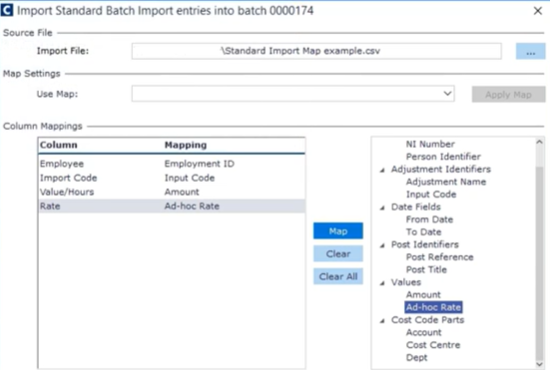
To import a bonus, you need to map an ad-hoc rate to it.


Was this article helpful?
That’s Great!
Thank you for your feedback
Sorry! We couldn't be helpful
Thank you for your feedback
Feedback sent
We appreciate your effort and will try to fix the article